
SSH Tunneling
SSH tunneling securely carries a port through the selected machine's SSH connection. Open Machine Management, find the machine that will act as the SSH server, and click its Tunnel button to configure a rule.
The key idea
Local Forwarding and Remote Relay both use SSH -L. The only difference is whether the final destination is a service on the current SSH server or another host that the SSH server can reach.
Choose a mode
| What you want to do | Mode |
|---|---|
| Access a database or web service on the current SSH server from your computer | Local Forwarding |
| Let the current SSH server access a development service running on your computer | Remote Forwarding |
| Open a local SOCKS5 proxy and choose destinations dynamically | Dynamic Forwarding |
| Use the current SSH server as a relay to reach another host on its private network | Remote Relay |
Local Forwarding
In plain language: bring a service on the current SSH server to a port on your computer.
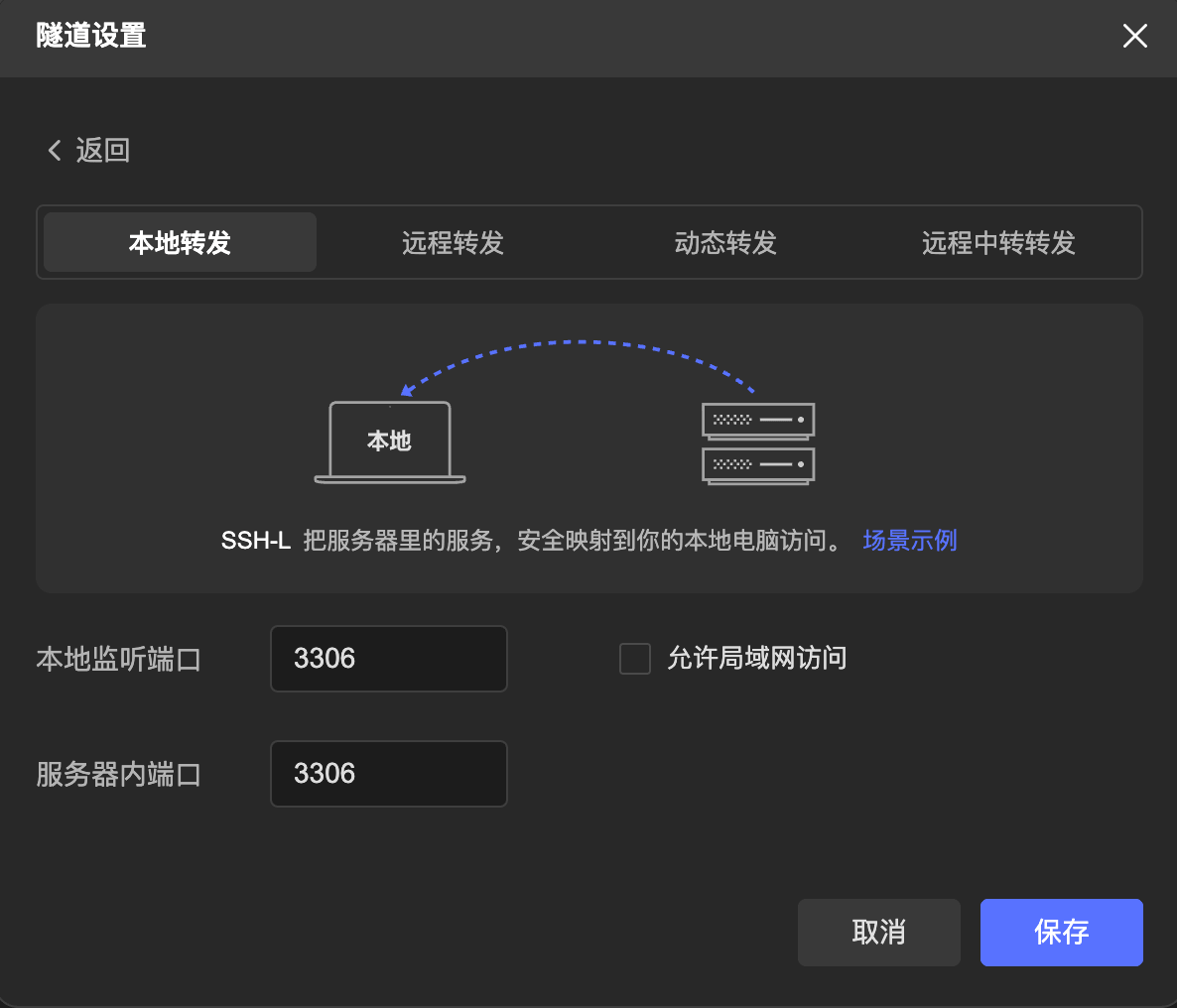
For example, MySQL is listening on 127.0.0.1:3306 on Server A and you want to connect with a local database client:
| Field | Example | Meaning |
|---|---|---|
| Local Listening Port | 3306 | The port opened on your computer |
| Server Port | 3306 | The MySQL port on Server A |
| Allow LAN Access | Off | Only this computer can use the tunnel |
After saving, connect your local database client to:
Host: 127.0.0.1
Port: 3306Your computer 127.0.0.1:3306
↓ SSH tunnel
Server A 127.0.0.1:3306Port already in use?
Change Local Listening Port to 13306, keep Server Port as 3306, and connect locally to 127.0.0.1:13306.
Remote Forwarding
In plain language: make a service on your computer available to the current SSH server.
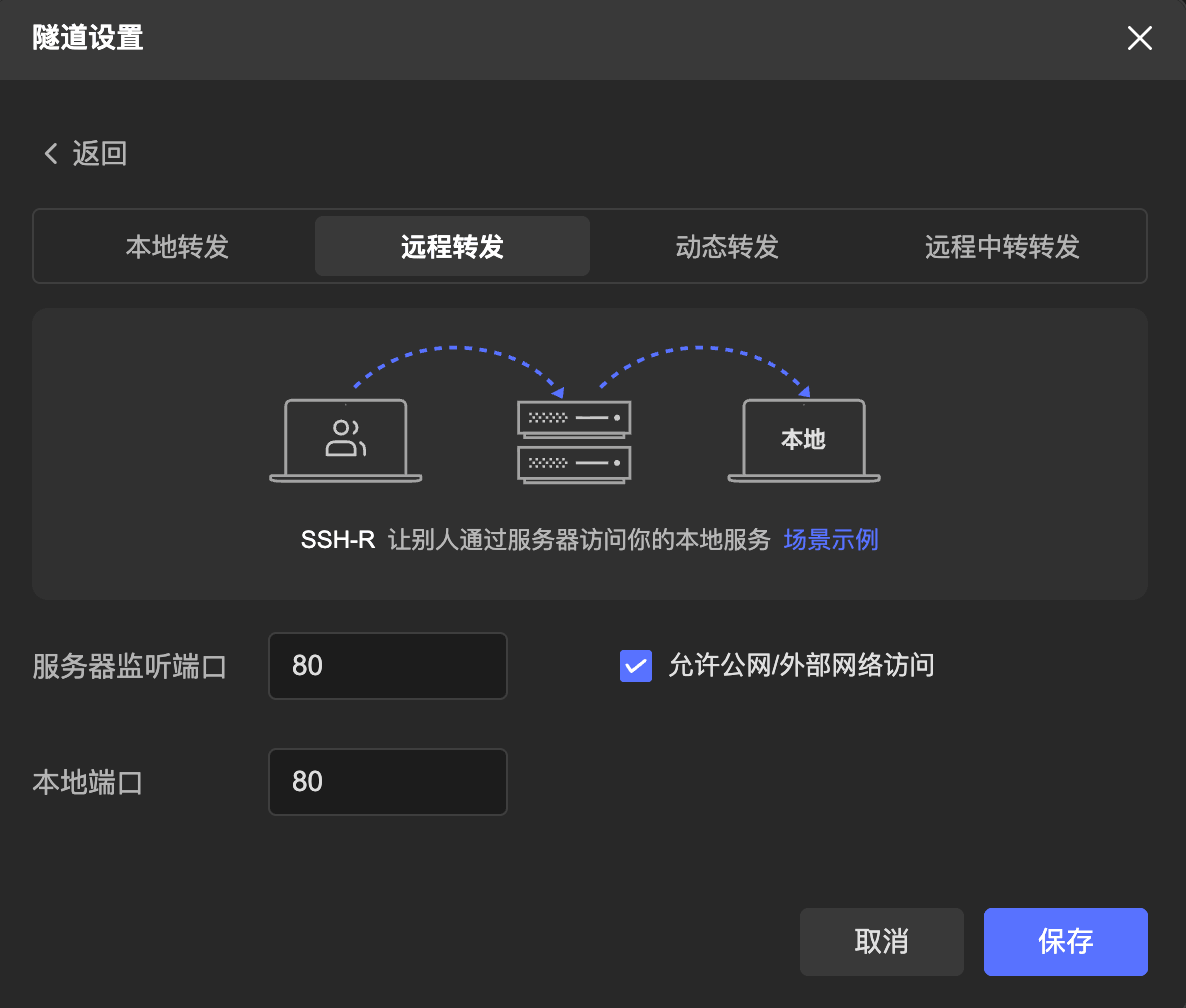
For example, a development site is running at 127.0.0.1:3000 on your computer and Server A needs to access it:
| Field | Example | Meaning |
|---|---|---|
| Server Listening Port | 8080 | The port opened on Server A |
| Local Port | 3000 | The development service port on your computer |
| Allow Public/External Access | Off first | Limits access to Server A itself |
After saving, test on Server A:
curl http://127.0.0.1:8080Server A 127.0.0.1:8080
↓ SSH tunnel
Your computer 127.0.0.1:3000Be careful with external access
When Allow Public/External Access is enabled, other devices may be able to reach your local service through Server-IP:8080. Enable it only when required, and also check the cloud security group, server firewall, and the SSH server's GatewayPorts setting.
Dynamic Forwarding
In plain language: open a SOCKS5 proxy on your computer; each application request chooses its own destination.
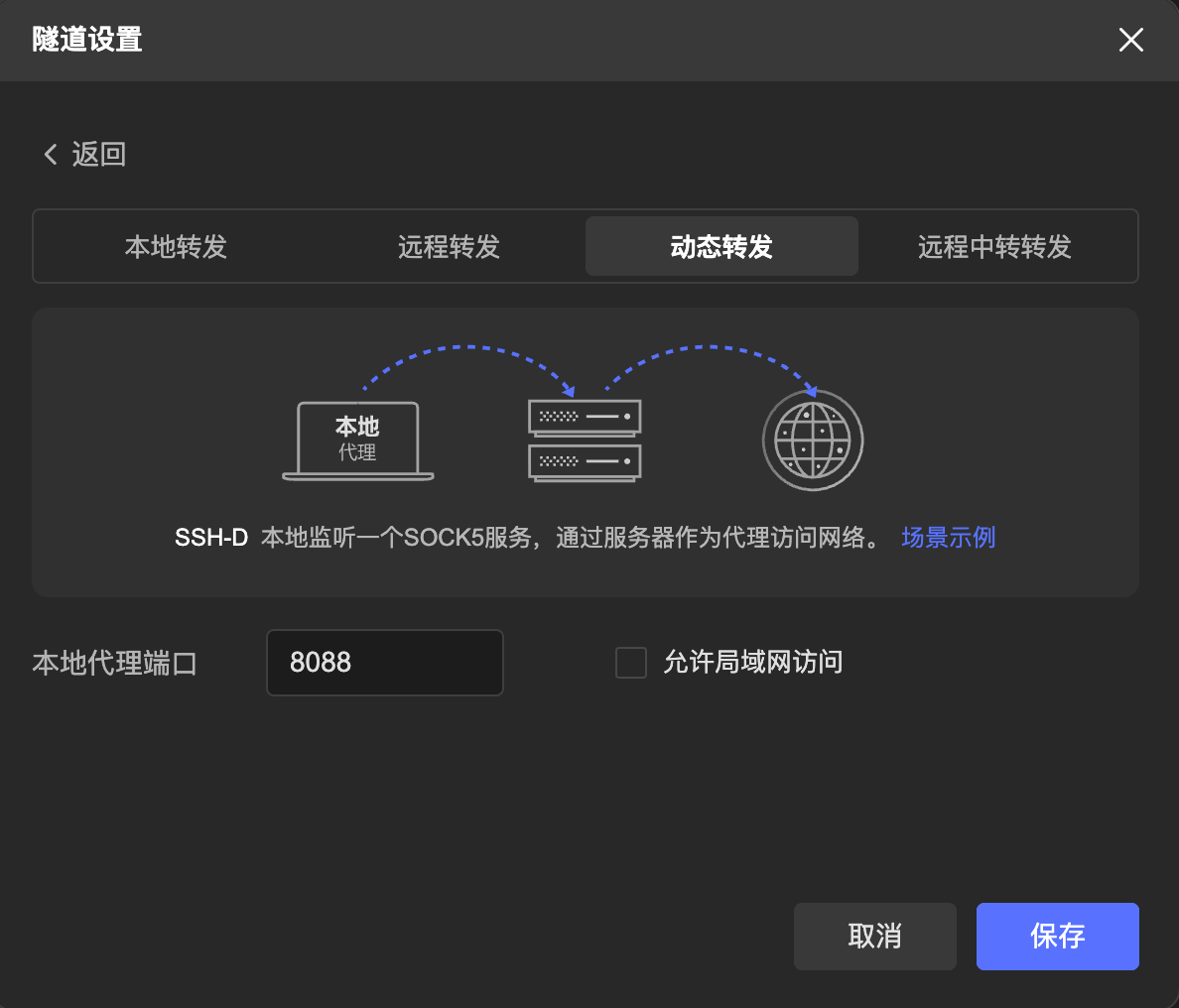
| Field | Example | Meaning |
|---|---|---|
| Local Proxy Port | 8088 | The SOCKS5 proxy port on your computer |
| Allow LAN Access | Off | Prevents other LAN devices from using your proxy |
After saving, configure the browser or application that should use the tunnel:
Proxy type: SOCKS5
Host: 127.0.0.1
Port: 8088
The destination is not fixed when the tunnel is created. The same 127.0.0.1:8088 proxy can access 10.0.0.8, 10.0.0.9, or any other address that Server A can reach.
TIP
This is a SOCKS5 proxy, not an HTTP proxy. If the application offers a "proxy DNS through SOCKS" option, enable it so hostnames are resolved through the tunnel.
Remote Relay
In plain language: your computer cannot reach Server B, but Server A can, so let Server A pass the traffic along.
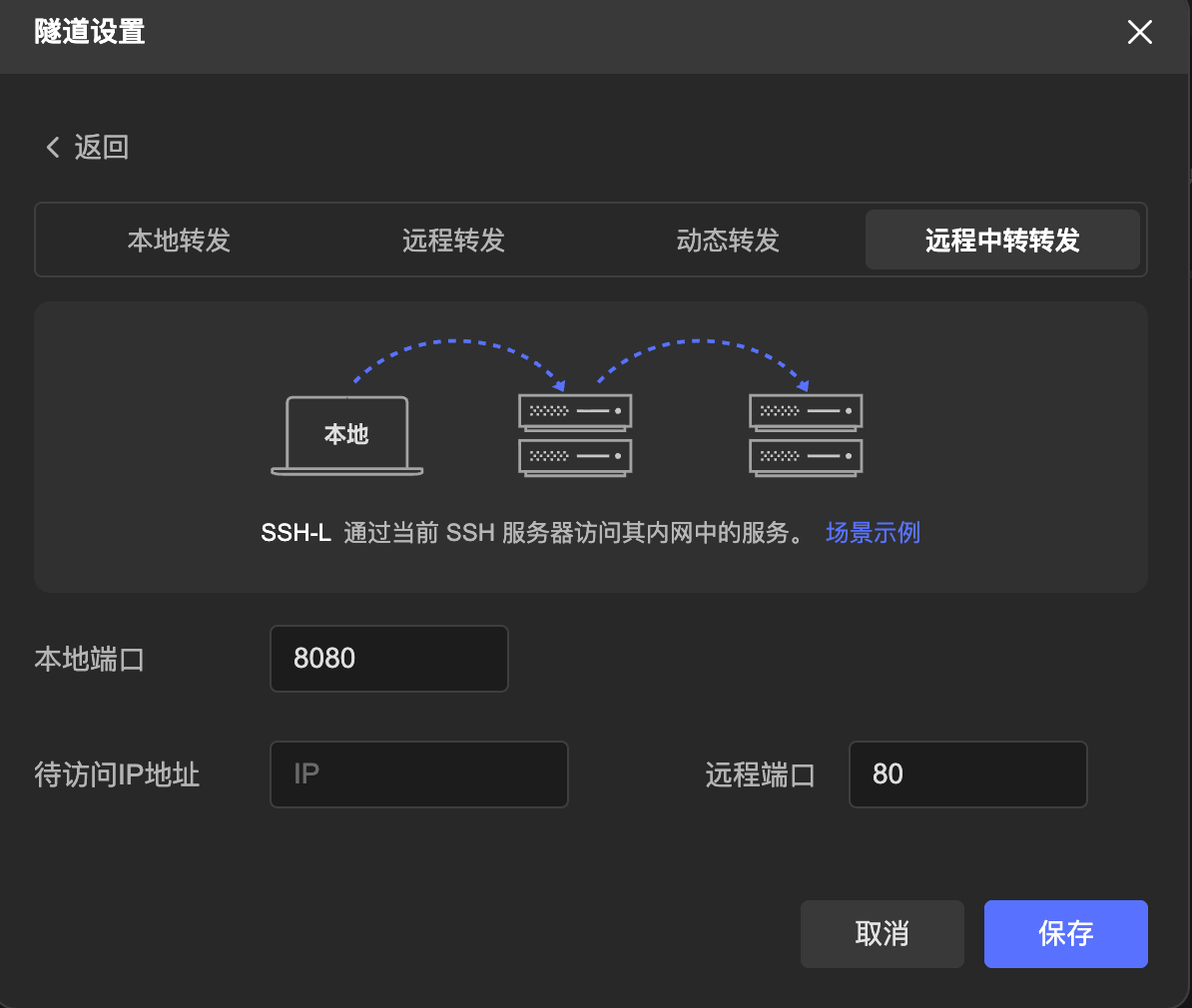
Before configuring the tunnel, confirm from Server A that the destination is reachable:
curl http://10.0.0.8:80If it succeeds, enter:
| Field | Example | Meaning |
|---|---|---|
| Local Port | 8080 | The port opened on your computer |
| Target IP Address | 10.0.0.8 | Server B's address as seen from Server A |
| Remote Port | 80 | The target service port on Server B |
After saving, open this address on your computer:
http://127.0.0.1:8080Your computer 127.0.0.1:8080
↓ SSH tunnel
Server A (relay)
↓ private network
Server B 10.0.0.8:80Whose point of view is the target IP from?
The Target IP Address is resolved and accessed from Server A, not from your computer. That is why you can enter a private-network address such as 10.0.0.8 that only Server A can reach.
Equivalent SSH commands
You do not need to type these commands when using GM Desktop. They simply show how each option maps to standard SSH:
| GM Desktop mode | SSH command example |
|---|---|
| Local Forwarding | ssh -L 3306:127.0.0.1:3306 user@server-a |
| Remote Forwarding | ssh -R 8080:127.0.0.1:3000 user@server-a |
| Dynamic Forwarding | ssh -D 8088 user@server-a |
| Remote Relay | ssh -L 8080:10.0.0.8:80 user@server-a |
Troubleshooting
| Symptom | Check first |
|---|---|
| The port is already in use | Choose another local listening port; the destination service port does not need to change |
| The tunnel starts but the page does not open | Confirm the destination service is running, then test its IP and port directly from the SSH server |
| Remote forwarding works only on Server A | This is expected while external access is disabled |
| Dynamic forwarding does not connect | Make sure the application is configured for SOCKS5, not HTTP proxy |
| The tunnel stops after SSH disconnects | Reconnect the machine and check the tunnel status; the tunnel depends on the SSH connection |