
Browser
The browser feature opens a local browser window, and page traffic is routed through the server you select.
Two ways to open the browser
Method 1: Open from the client's My Desktop
In Machine Management, find the server you want to use and click the browser icon in that machine card's quick action bar. Confirm the server name in the prompt to open its browser.
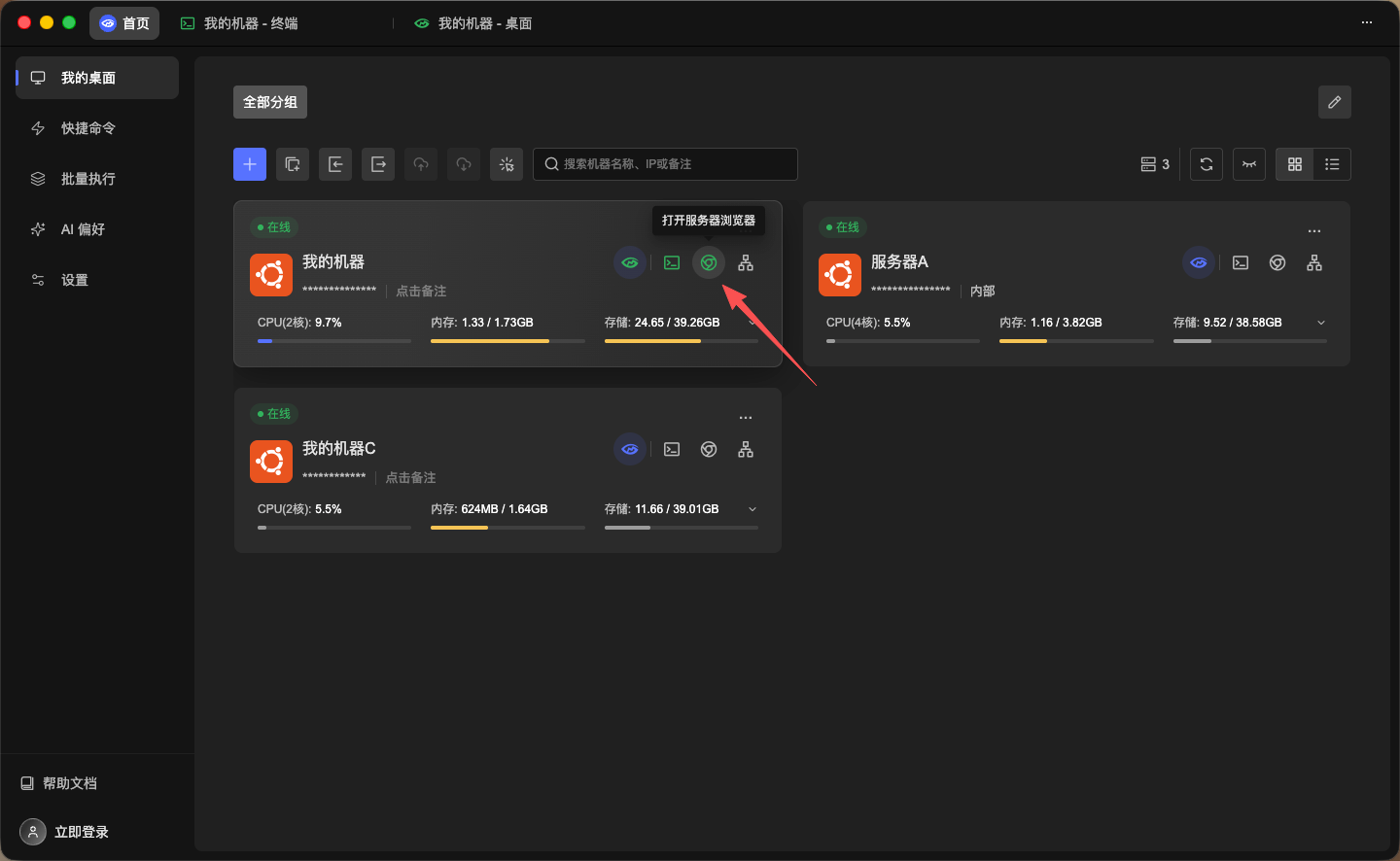
The quick action order is: GM Desktop, Terminal, Browser, Tunnel, More. Click the Browser button on the card of the target server; each server's browser uses its own connection and network egress.
Method 2: Open the browser micro-app in Desktop Mode
After connecting to a server and entering GM Desktop, you can also open the browser micro-app from Desktop Mode. Click the browser icon to launch the browser for the current server.
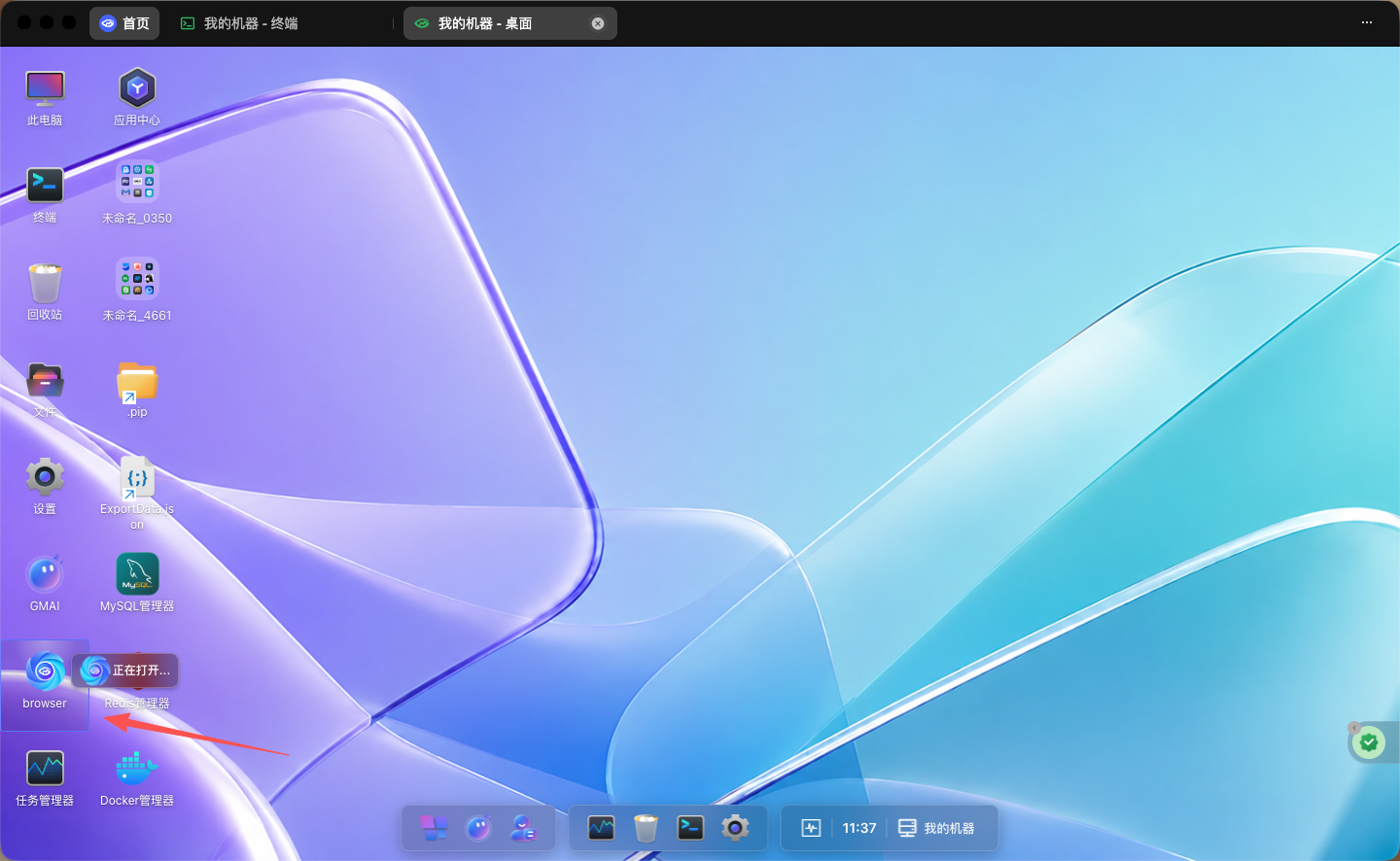
Start and use the browser
After clicking the button, a startup progress dialog appears. The browser interface opens automatically when initialization is complete.
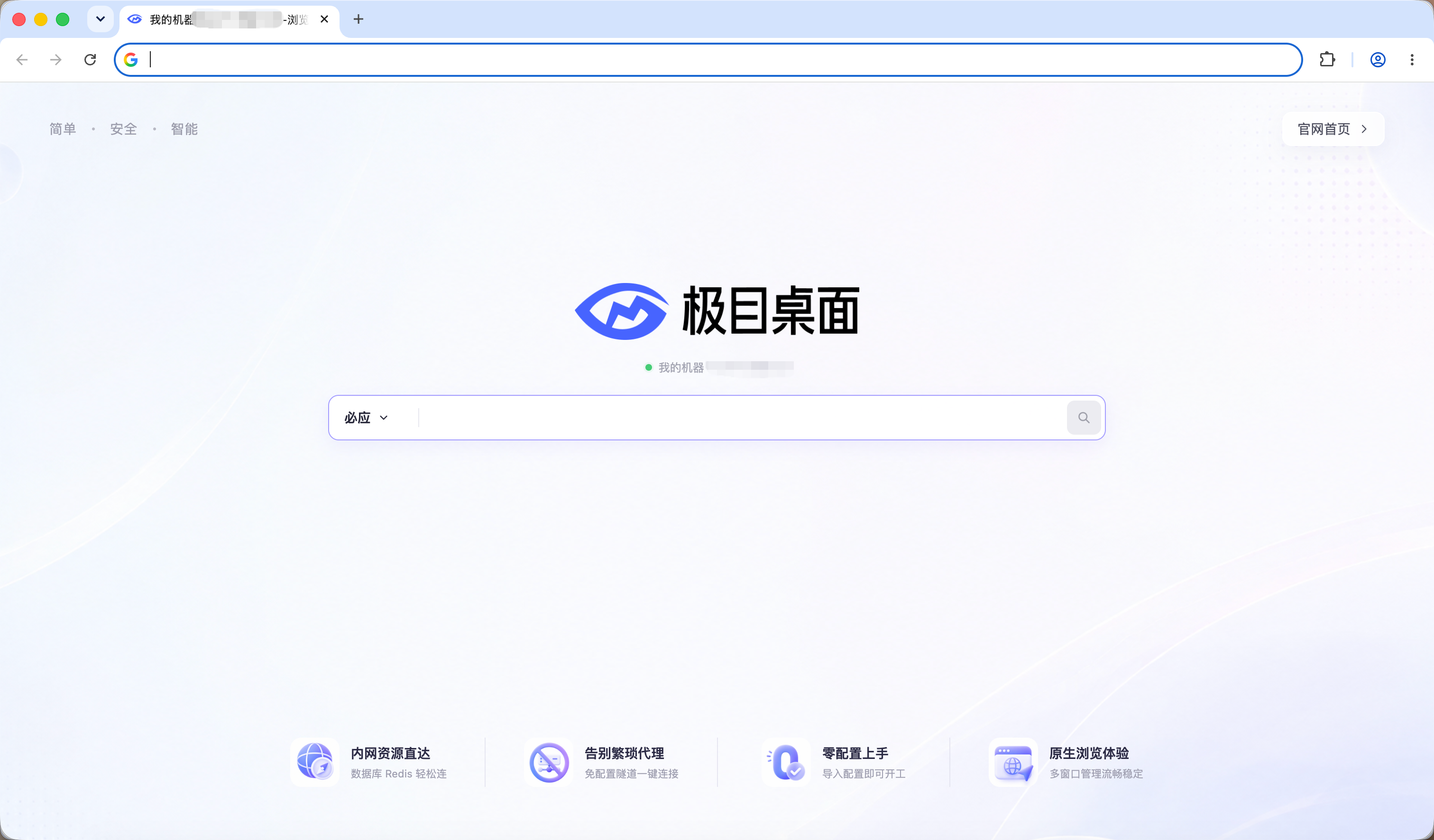
Pages are shown in a local browser window, while page requests and network traffic are routed through the selected server. This is useful for private-network resources or websites that must be accessed from the server's network.
- Choose by server: Select the target server when opening the browser to ensure the correct connection.
- Local window: Browse in a local browser window without remote desktop software.
- Secure transport: Browser session data is carried over an SSH-secured connection.
- Multiple sessions: Open independent browser sessions for different servers.