
Machine Management
Machine Management is the core module of the GM Desktop Client, providing centralized management for server connections. Through an intuitive card view, you can monitor the connection status and resource usage of all servers at a glance, with support for group management, batch import, jump server proxy, and SSH tunneling — making multi-server operations efficient and organized.
Core Features
Machine Management covers the complete server connection lifecycle with the following core capabilities:
| Feature | Purpose | Core Capabilities |
|---|---|---|
| Machine Overview | Visual Server Monitoring | Card/list dual views, real-time CPU/Memory/Storage monitoring, online status |
| Group Management | Logical Organization | Custom groups, group filtering, group editing |
| Add Machine | Connection Configuration | Single add (password/certificate), jump server proxy, connection testing |
| Batch Add | Efficient Deployment | Text format batch import, group assignment |
| Terminal | SSH Command Line | One-click connect, multi-tab terminal, AI command generation |
| GM Desktop | Visual Server Management | Desktop-style app launcher with all management tools |
| Batch Execution | Multi-Machine Operations | Execute commands on multiple machines simultaneously |
Machine Overview
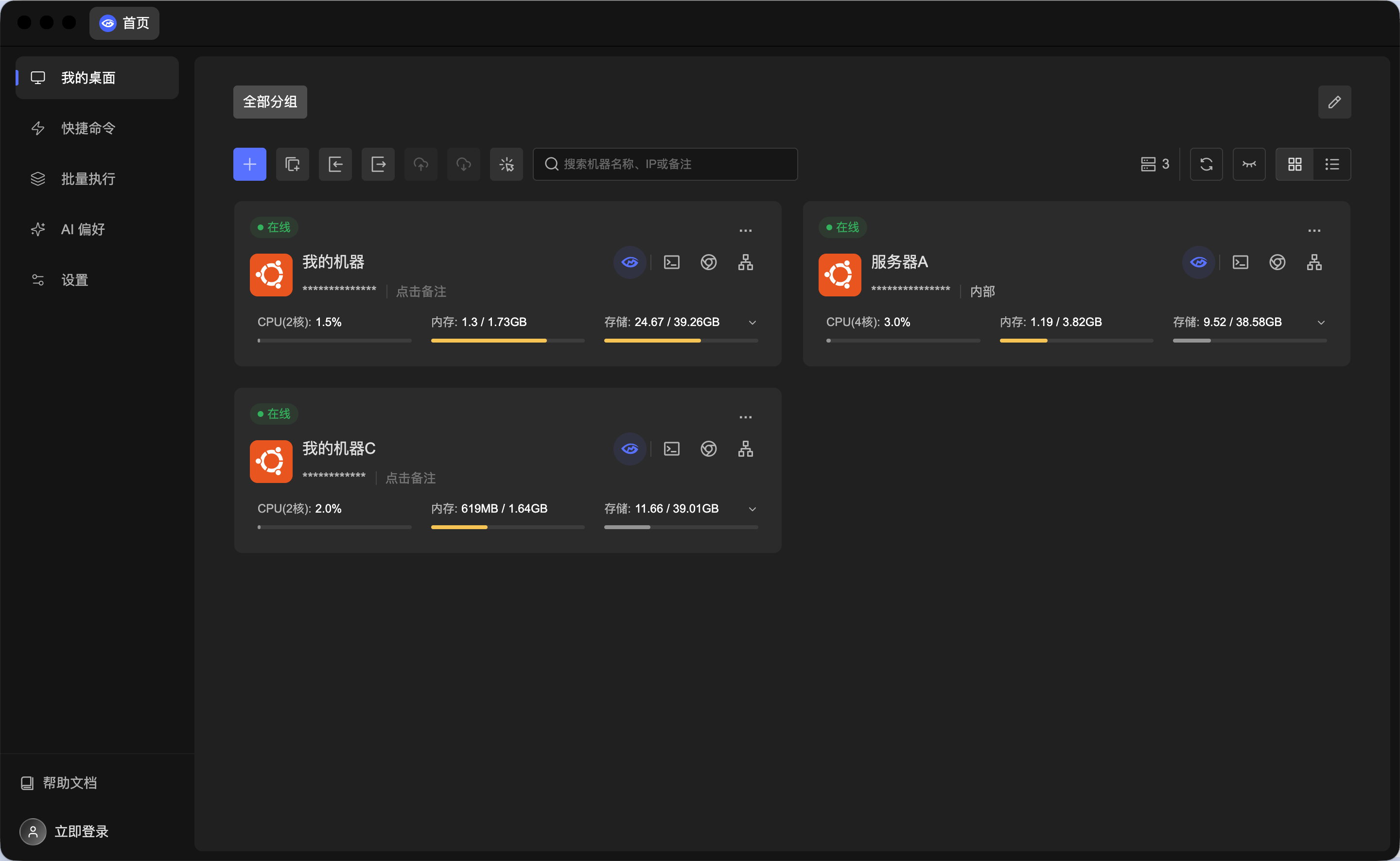
At-a-glance server status monitoring panel. The main interface displays all added servers in a card grid, with each server's connection status and resource usage clearly visible.
Machine Card: Each card shows a server's core information:
- Name & Address: Machine name and connection password (masked) at the top.
- Connection Status: Top-left dot indicates online status — green for online, gray for offline.
- Resource Monitoring: Bottom area shows three key metrics in real-time with progress bars for online machines.
View Modes: Top toolbar provides two view modes:
- Card View (grid icon): Grid layout for overview monitoring.
- List View (list icon): Compact list layout for managing large numbers of machines.
Groups & Filtering:
- Keyword Search: Search box supports fuzzy search by machine name, IP, or notes.
- Group Tabs: Top tabs display all groups (e.g., "All Groups", "Test"), click to filter by group.
- Group Editing: Click the edit icon to manage groups — add, rename, or delete groups.
Quick Action Bar: Each card provides a row of icon buttons for quick access to various features:

| Button (left to right) | Function | Description |
|---|---|---|
| GM Desktop | Enter Visual Desktop | Open the GM Desktop management system |
| Terminal | Open SSH Terminal | Enter the command line terminal for this machine |
| Browser | Open Local Browser | Open pages in the local browser, with network traffic routed through this server |
| Tunnel | Tunnel Settings | Configure SSH port forwarding rules |
| More | More Actions | Pin to top, edit, delete, and other actions |
Add Machine
Click the "+" button on the left side of the toolbar to open the Add Machine dialog. The dialog contains two tabs: Basic Settings and Advanced Options.
Basic Settings
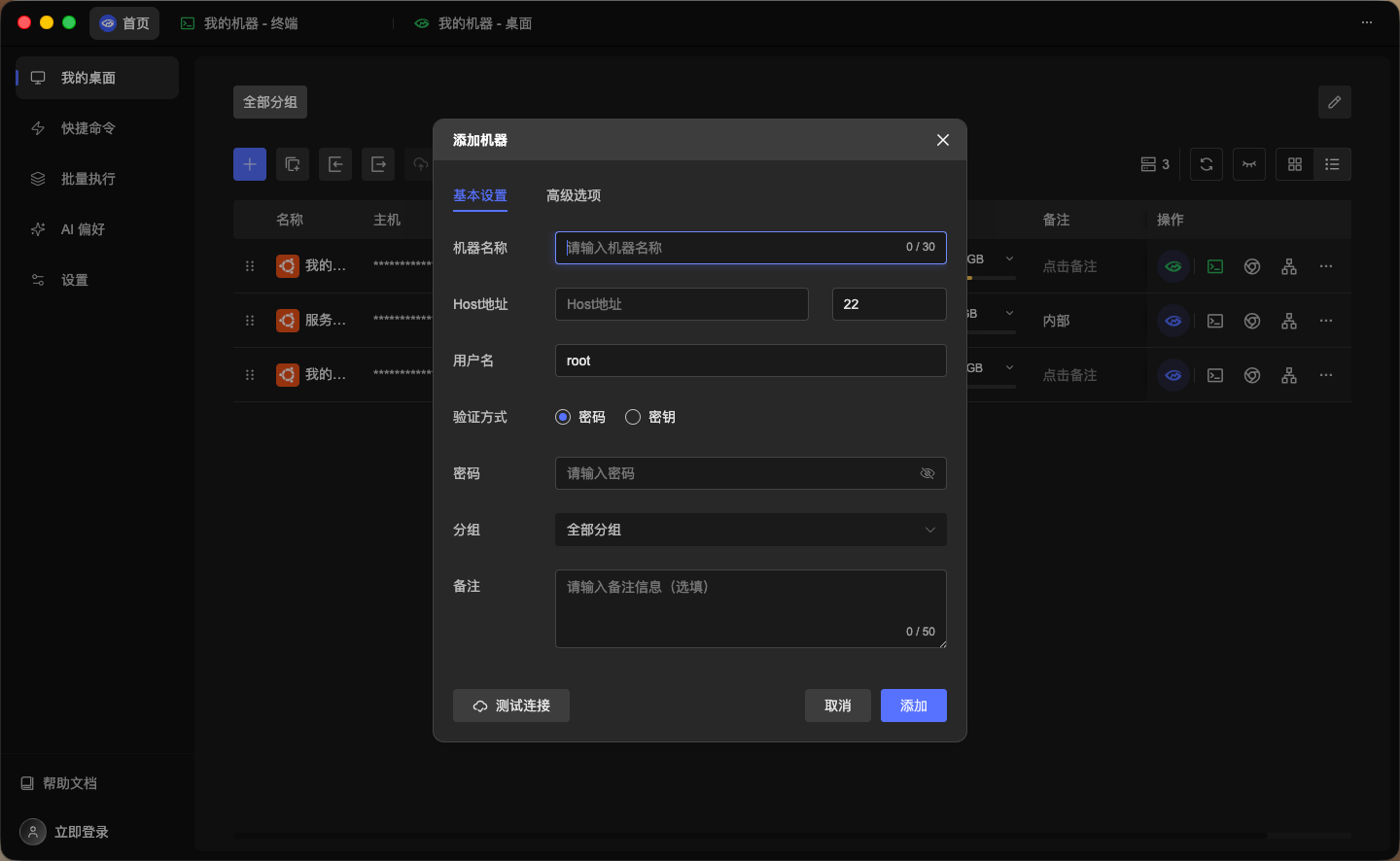
| Field | Description | Constraints |
|---|---|---|
| Machine Name | Custom display name for the machine | Max 30 characters |
| Host Address | Server IP address or domain name | — |
| Port | SSH connection port | Default 22 |
| Username | SSH login username | Default root |
| Auth Method | Authentication method: "Password" or "Certificate" | Toggle |
| Password | Required when auth method is "Password", with visibility toggle | — |
| Group | Assign the machine to a group | Dropdown, default "All Groups" |
| Notes | Optional supplementary notes | Max 50 characters |
Bottom action buttons:
- Test Connection: Click "Test Connection" to verify SSH connectivity before adding.
- Cancel / Add: Click "Add" to confirm, or "Cancel" to discard.
Advanced Options
Switch to Advanced Options to configure the connection timeout and jump-server proxy.
- Timeout: Set the SSH connection timeout in seconds, from
10to60. Increase it for slow or cross-region connections.
For intranet servers that cannot be accessed directly, you can use a Jump Server for relay connections.
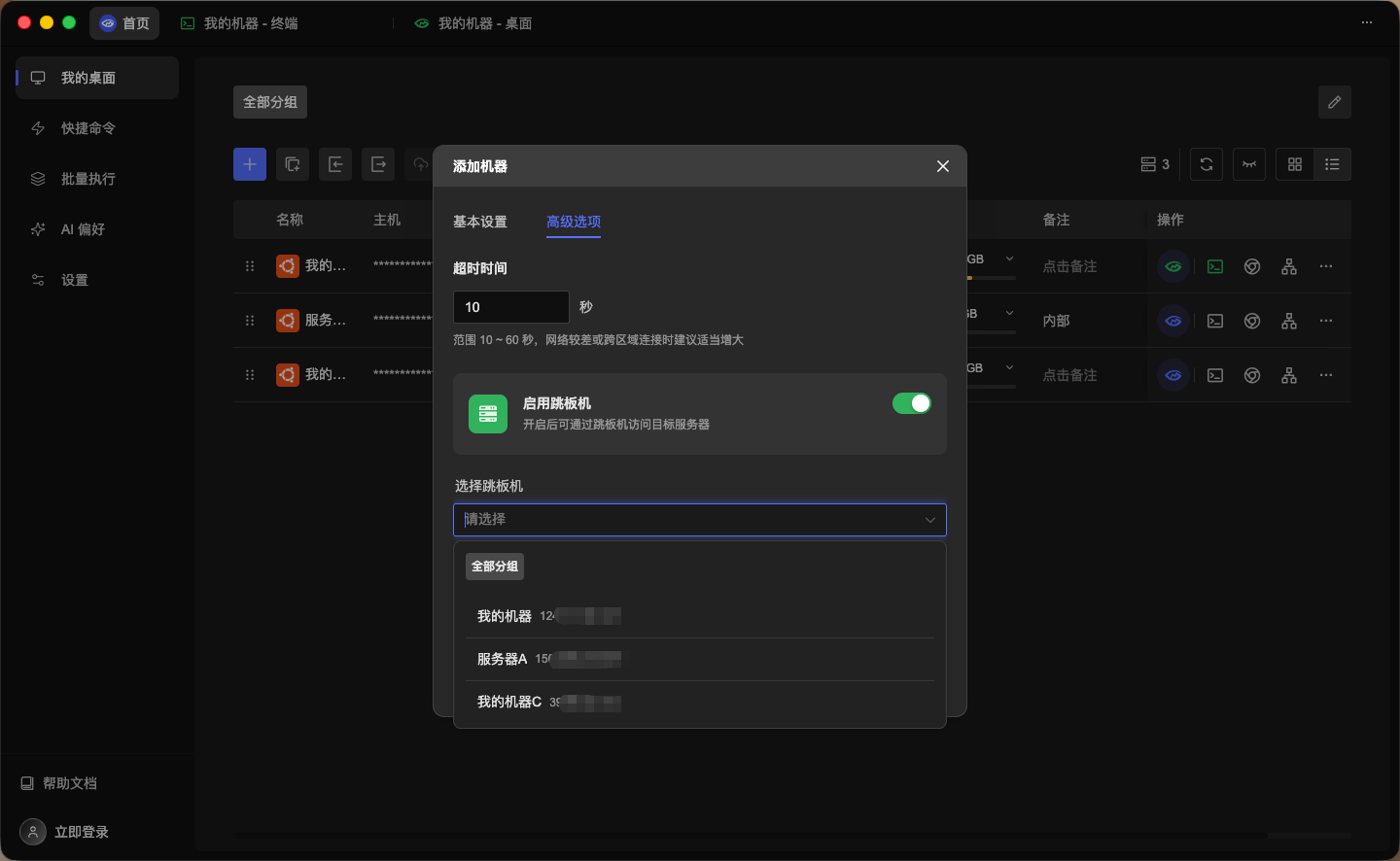
- Enable Jump Server: Toggle jump-server proxy on or off. When enabled, the target server is accessed through the selected jump server.
- Select Jump Server: Choose an existing machine from the dropdown as the jump server. Machines are grouped by group name and shown with their host addresses.
Tip
Jump servers are ideal for scenarios where the target server is on an intranet, has no public IP, or security policies restrict direct connections. GM Desktop automatically establishes an SSH tunnel through the jump server for transparent relay, with no manual ProxyJump configuration needed.
Batch Add Machines
Click the "Batch Add" button in the toolbar to open the batch import dialog for adding multiple servers at once.
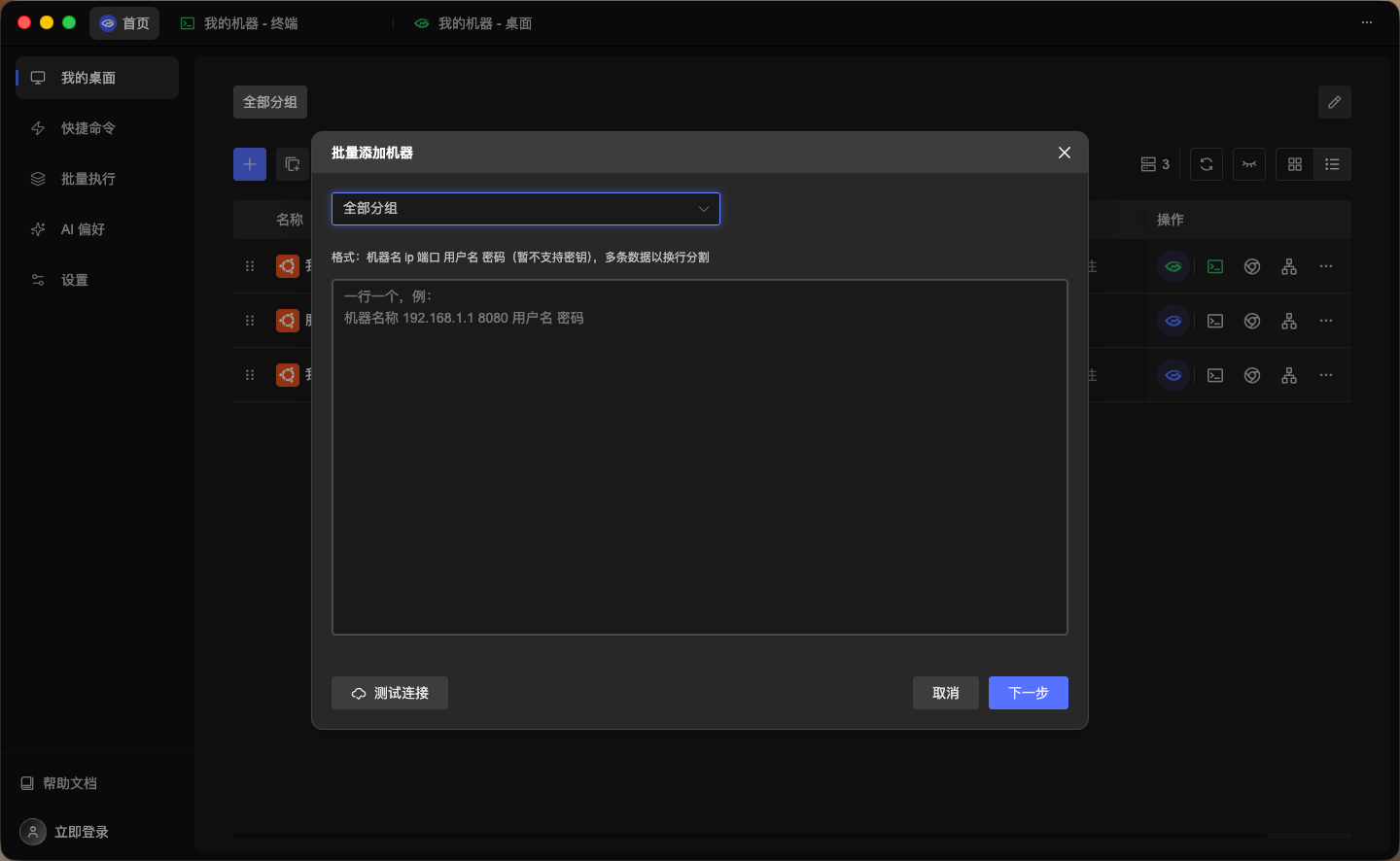
- Target Group: Select the target group from the top dropdown.
- Input Format: Enter machines in text format, one per line:
- Test Connection: Batch test connectivity for all entered machines.
- Cancel / Next: Click "Next" to proceed, or "Cancel" to discard.
MachineName IPAddress Port Username Password- Example:
MyServer 192.168.1.1 8080 root password
Note
Batch add does not support certificate authentication — only password authentication. For certificate-based auth, use single machine add to configure each server individually.
Quick Access
Each machine card's action bar provides three core entry points for direct access to different management views.
Terminal
Click the "Terminal" button to establish an SSH connection and enter the command line terminal. The top tab bar displays the connected machine name and IP, supporting multi-tab multi-terminal simultaneous operation.
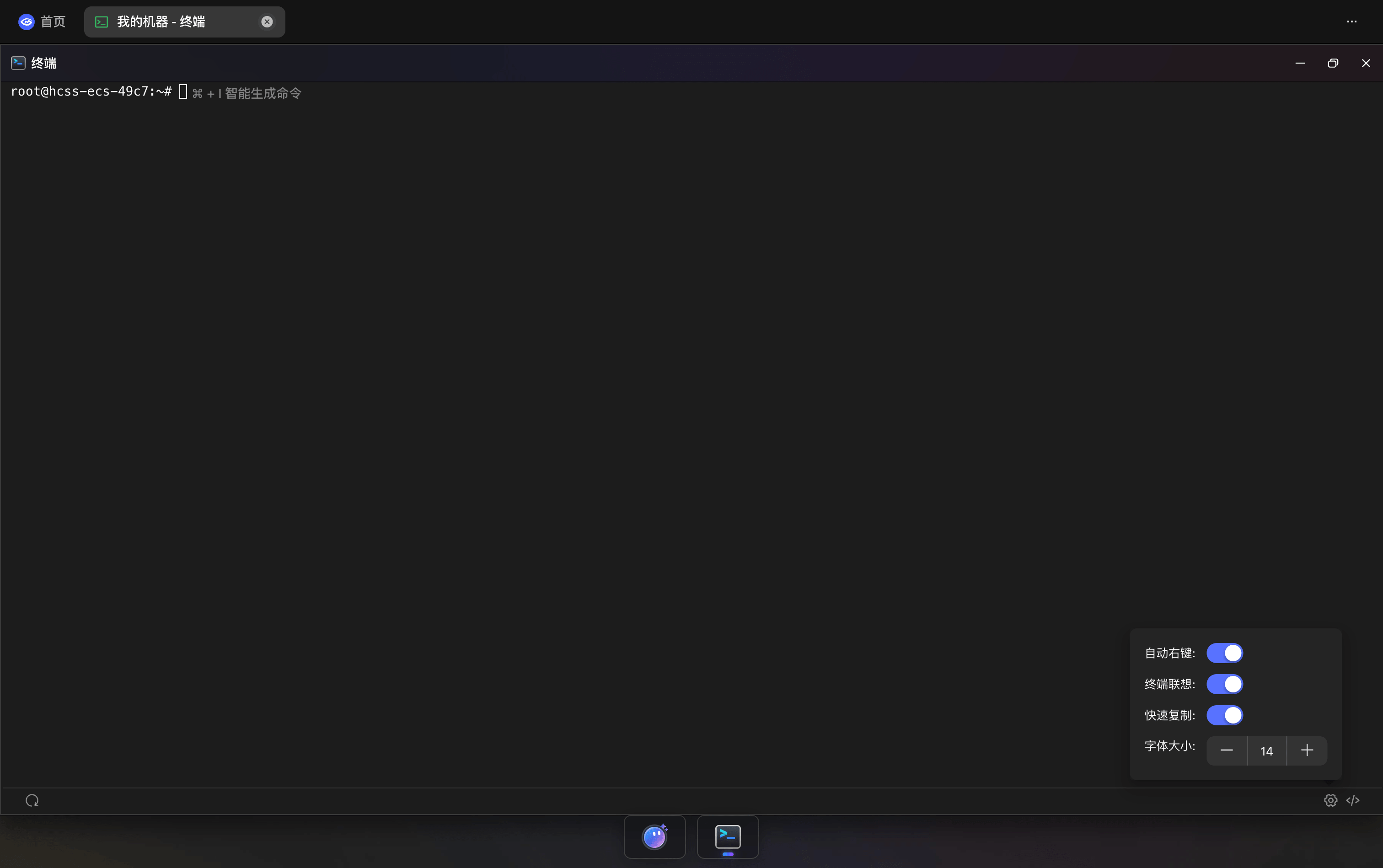
- SSH Connection: Automatically connects using the machine's configured credentials, no password re-entry needed.
- Smart Hints: Top hint bar shows shortcut information, such as
⌘ + Ifor AI command generation,⌘ + Lto open GMAI. - Bottom Toolbar: Quick tool buttons for one-click access to common operations.
Tip
For more terminal features, see: Terminal
GM Desktop
Click the "GM Desktop" button to enter the visual desktop management system. This is GM Desktop's core operations interface, integrating all server management tools in a desktop metaphor.
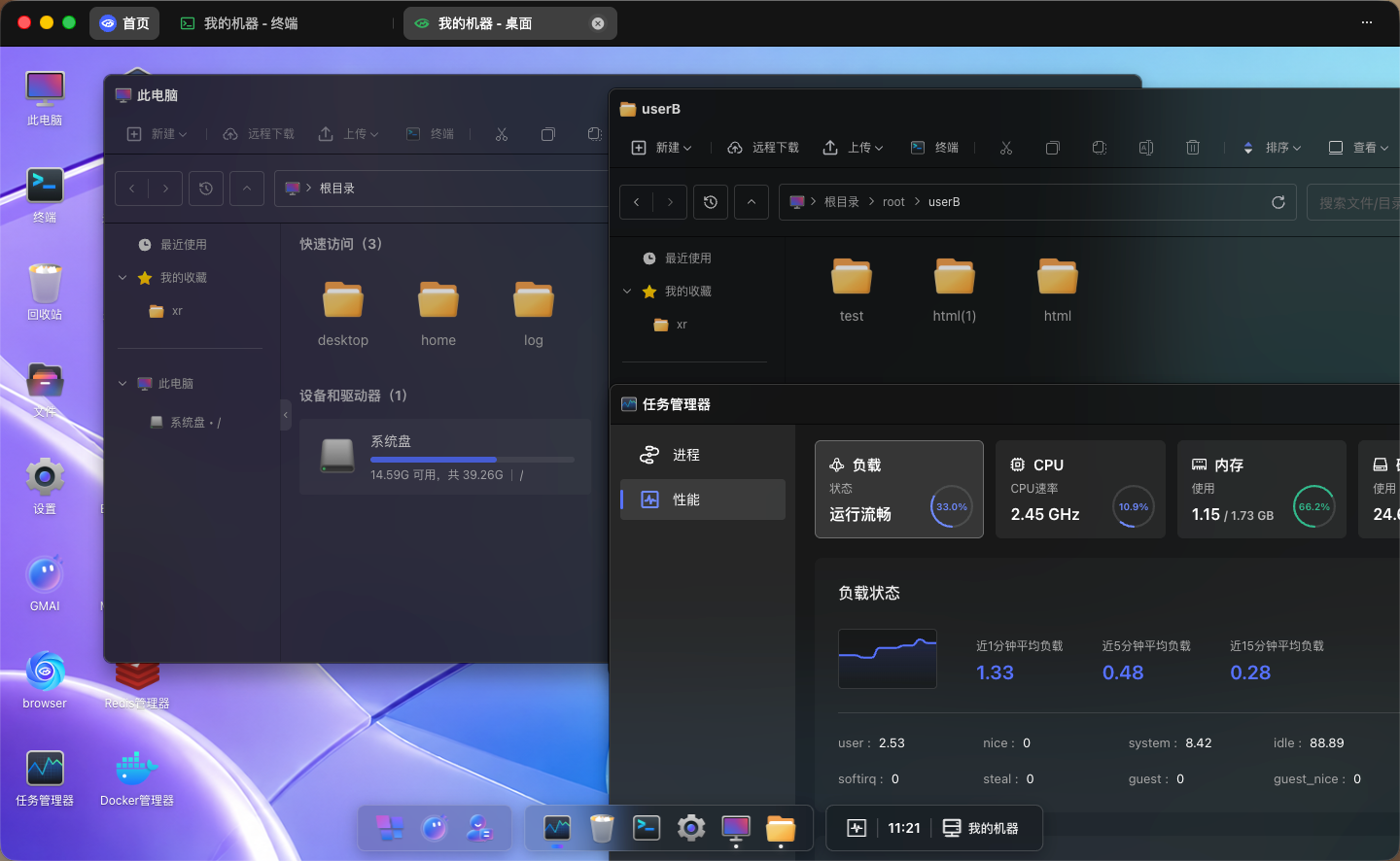
The desktop arranges all available management applications in an icon grid, with the bottom taskbar showing the current time and machine IP address.
Tip
For more about GM Desktop, see: GM Desktop
GM Desktop Service
The client bottom provides a GM Desktop Service status bar showing local service status:
- Local Service: Toggle to start/stop the local GM Desktop service. When enabled, the client can monitor resource status (CPU, Memory, Storage) for all connected machines in real-time.