
Terminal
Terminal is an SSH terminal micro-app in GM Desktop. After connecting to a machine, GM Desktop starts that machine's desktop, quickly opens the Terminal micro-app, and displays it fullscreen so you can begin command-line work immediately.
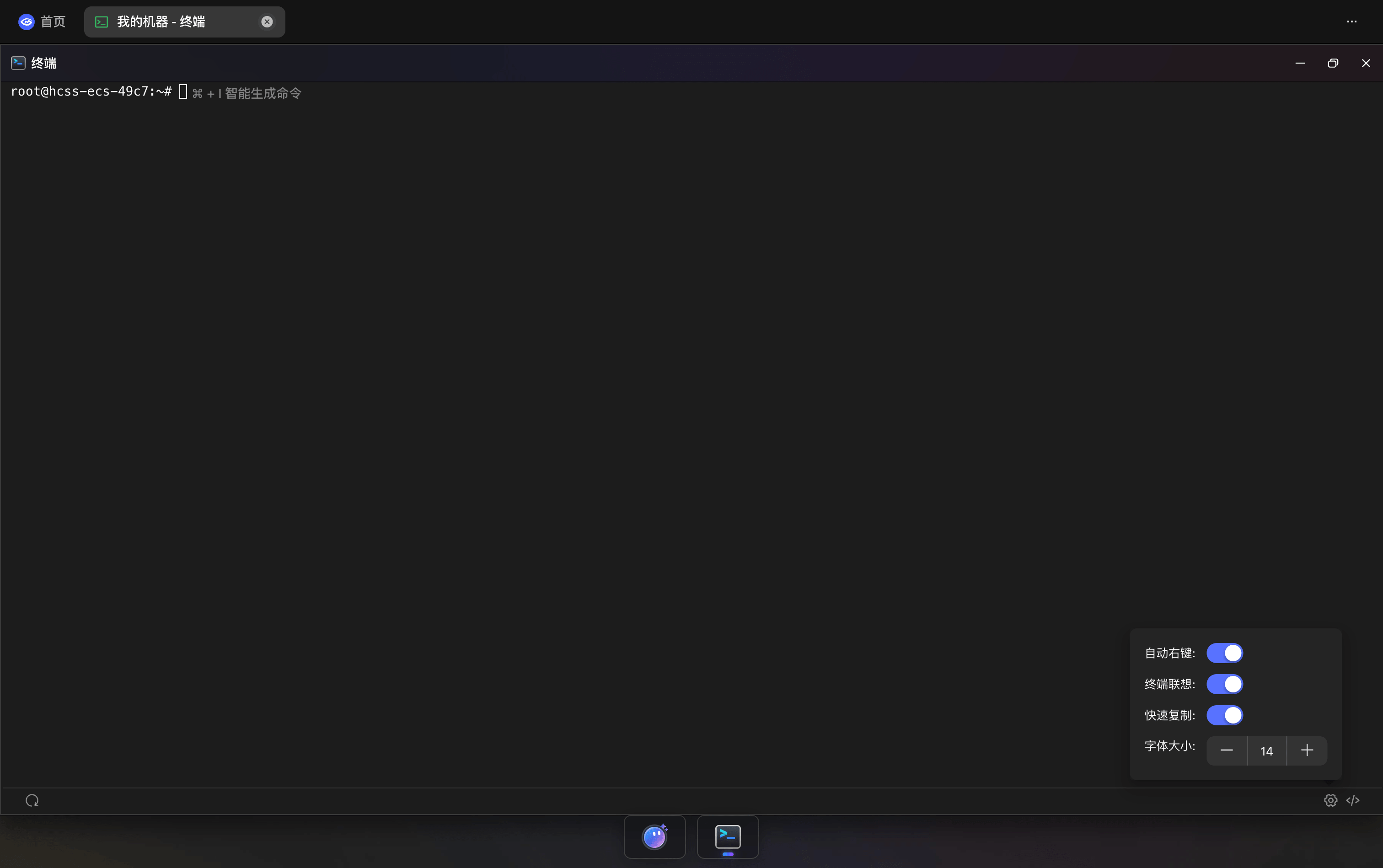
Open a Terminal
- Select the server in Machine Management.
- Open that machine's GM Desktop.
- Launch the Terminal micro-app; it opens fullscreen.
To handle several tasks at once, open additional Terminal micro-apps. Each terminal runs independently and can connect to another machine or perform a different task on the same machine.
Core Features
| Feature | Description |
|---|---|
| Multiple Terminals | Open independent terminals for parallel tasks |
| AI Command Generation | Describe a task in natural language and generate a command |
| Terminal Autocomplete | Get command completions and descriptions while typing |
| Quick Commands | Find and use saved quick commands inside the terminal |
| GMAI | Send terminal issues to the GMAI micro-app for one-click troubleshooting |
| Terminal Settings | Configure right-click behavior, autocomplete, quick copy, and font size |
AI Command Generation
Describe what you need and let AI write the command. Press ⌘ + I, enter the desired task, and AI generates a corresponding Shell command.
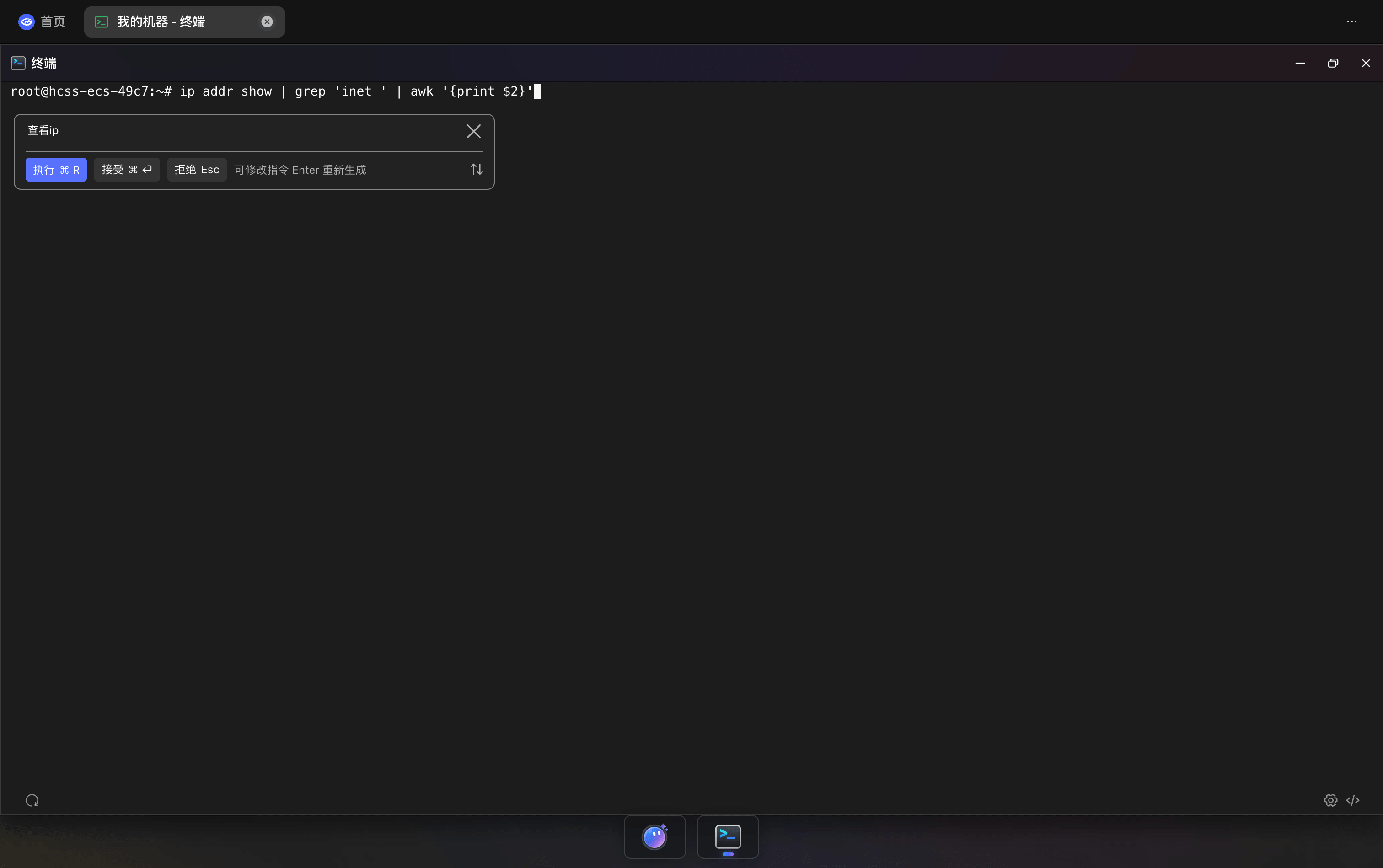
- Press
⌘ + Iin the terminal. - Enter a request such as "check IP".
- Review the generated command.
- Execute, accept, reject, or regenerate it.
| Action | Shortcut | Description |
|---|---|---|
| Execute | ⌘ R | Run the generated command immediately |
| Accept | ⌘ ↵ | Insert the command for review or editing before execution |
| Reject | Esc | Discard the generated result |
| Regenerate | Enter | Generate again from the updated request |
Terminal Autocomplete
The terminal shows matching command suggestions and descriptions while you type.
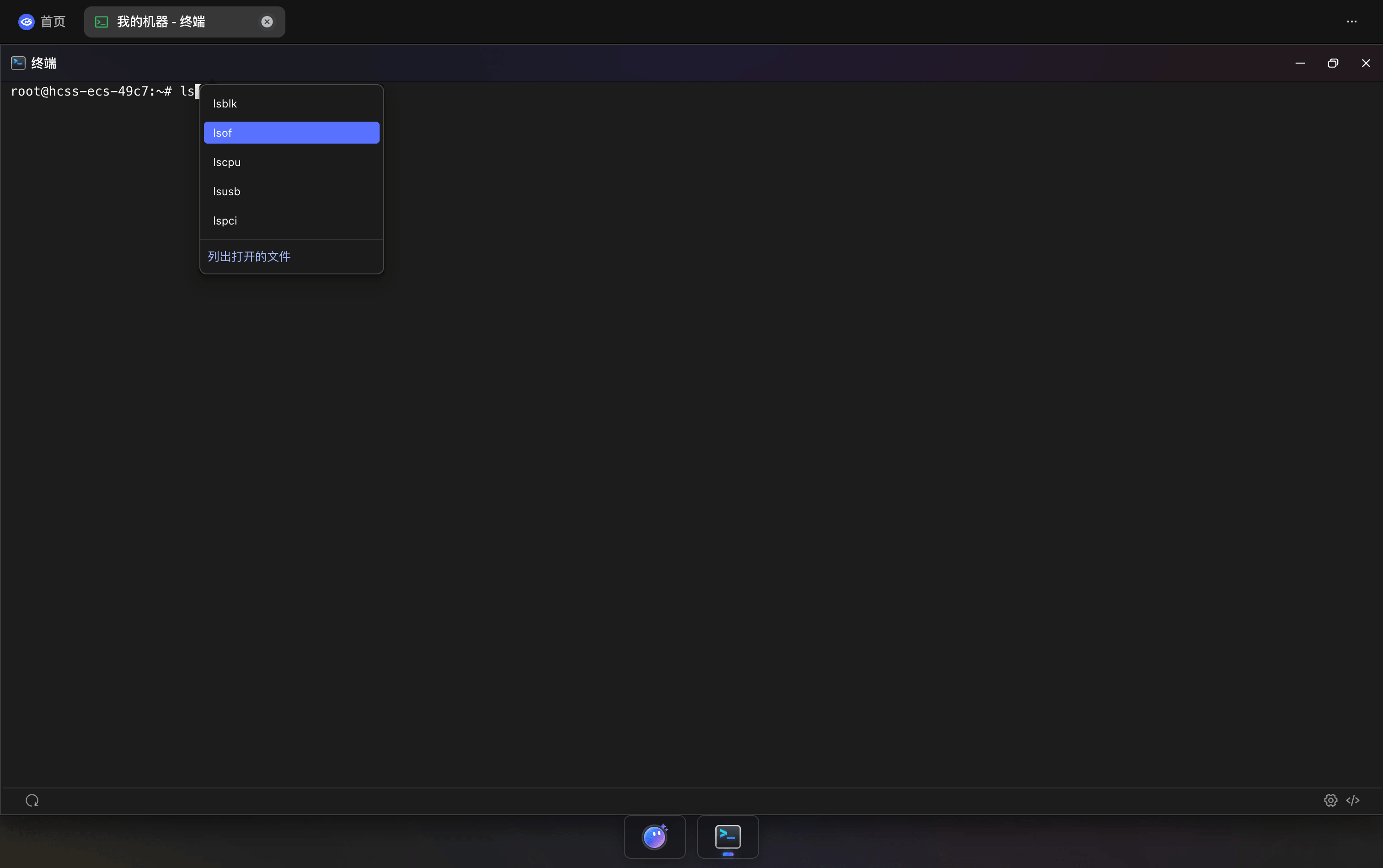
- Real-Time Completion: Enter a command prefix to see matching results.
- Command Descriptions: Review the purpose of the selected suggestion.
- Keyboard Selection: Use the arrow keys, then press
TaborEnterto confirm.
Quick Commands
Click the quick-command icon at the bottom-right of the terminal to open the command panel on the right.
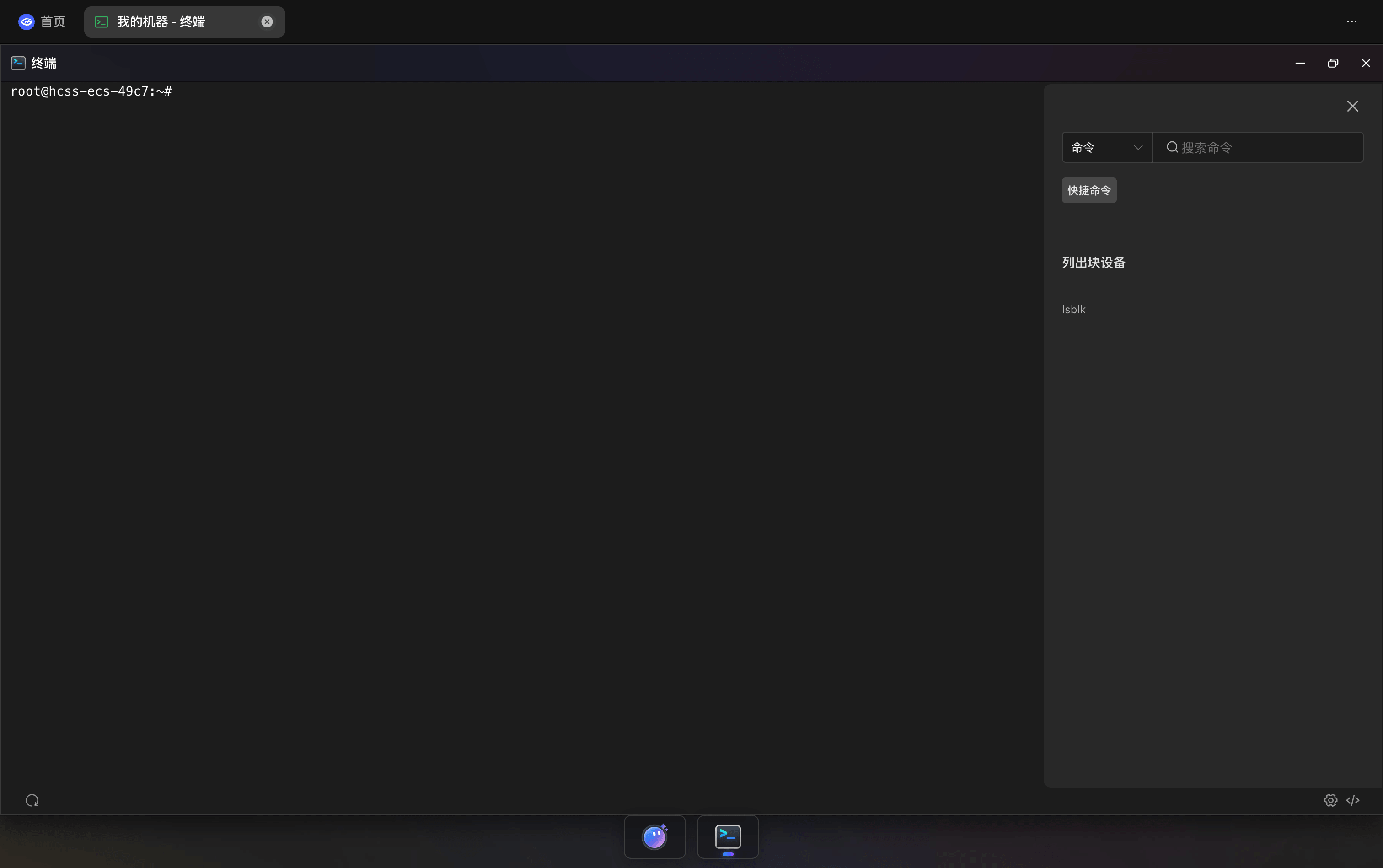
- Type Selection: Choose a command type from the dropdown.
- Search: Find saved quick commands by name.
- Content Preview: Select an item to review its full content before using it in the current terminal.
- Open Quick Commands: Use the button at the bottom to manage or add quick commands.
TIP
For creating quick commands, supported script formats, and batch execution, see Quick Commands.
GMAI Assistant
Terminal mode now includes a dedicated GMAI micro-app. When you encounter an error, performance issue, or unfamiliar command, you can send the relevant terminal output directly to GMAI for context-aware analysis and troubleshooting.
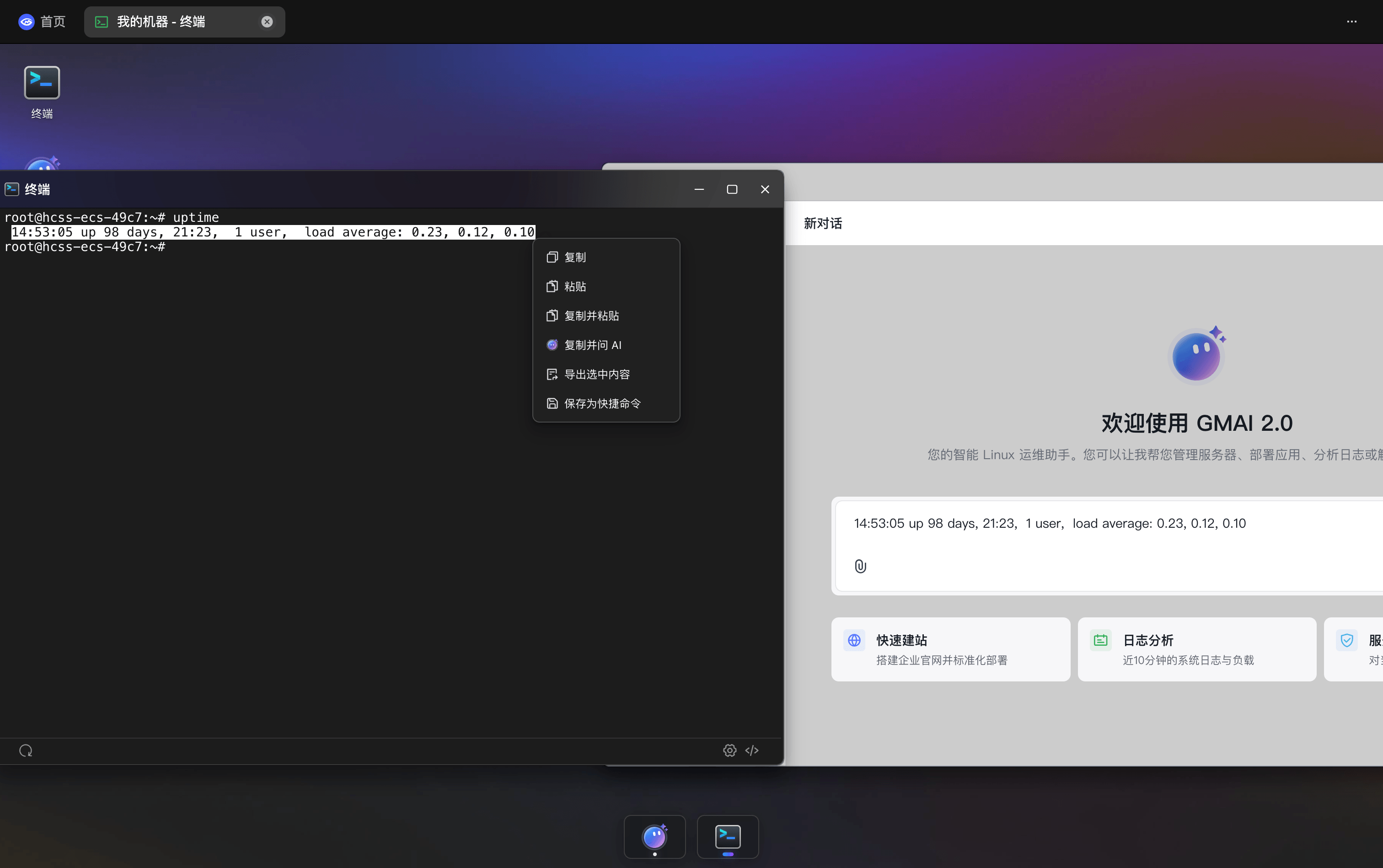
To use it:
- Run a command and select the output you want to investigate.
- Open the context menu and choose Copy and Ask AI.
- GM Desktop opens the GMAI micro-app and inserts the selected terminal content into a new conversation.
- Add more context or send it immediately, then let GMAI analyze the cause and suggest troubleshooting steps.
This workflow removes the need to copy, switch windows, and paste manually. It is useful for diagnosing command output, system load, runtime errors, and log excerpts.
Terminal Settings
Click the settings icon at the bottom-right to configure terminal behavior:
| Setting | Description |
|---|---|
| Auto Right-Click | Configure terminal right-click behavior |
| Terminal Autocomplete | Show or hide command suggestions while typing |
| Quick Copy | Automatically copy selected terminal text to the clipboard |
| Font Size | Use - and + to adjust terminal text size |
Bottom Toolbar
- Refresh Connection: Re-establish the current SSH connection.
- Terminal Settings: Open personalization settings.
- GMAI: Open the GMAI micro-app.
- Quick Commands: Open the Quick Commands panel.
Shortcuts
| Shortcut | Function |
|---|---|
⌘ + I | Generate a command with AI |
⌘ + R | Execute the AI-generated command |
⌘ + ↵ | Accept the AI-generated command |
Esc | Reject the AI-generated command |