
Quick Commands
Quick Commands stores and runs commands and scripts that you create yourself. Save routine checks, service restarts, deployments, and other recurring work, then select one or more machines when you need to run it.
Core Features
| Feature | Description |
|---|---|
| Quick Commands | Store your own commands and scripts in one place |
| Search and Filter | Find items by name, description, content, or type |
| Import and Export | Move or back up your quick commands |
| GMAI Assistance | Generate, explain, and improve commands or scripts |
| Batch Execution | Run on one or more machines and review the results centrally |
Quick Command List
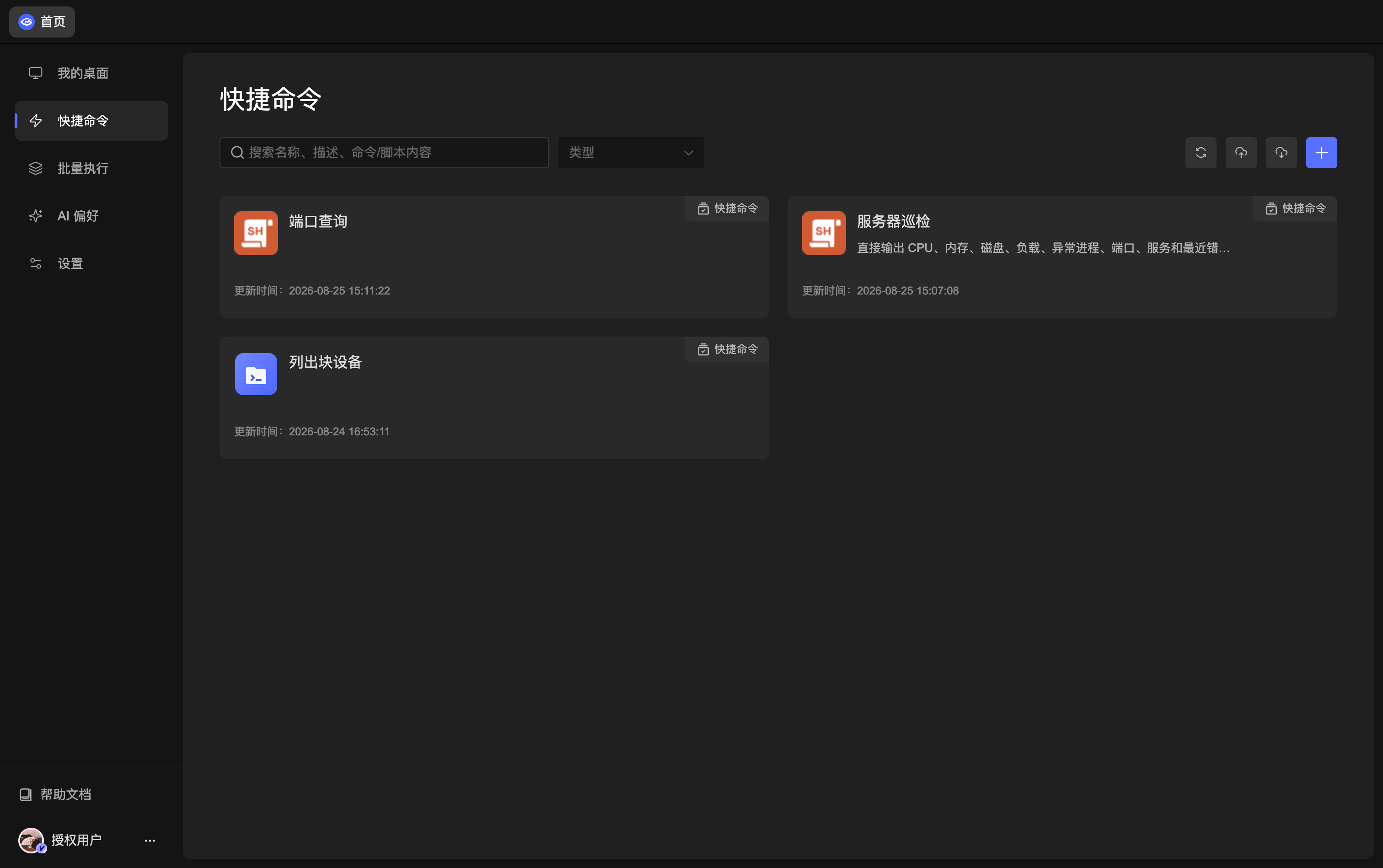
The Quick Commands page displays your saved commands and scripts as cards.
Search and Toolbar
- Keyword Search: Search by name, description, command content, or script content.
- Type Filter: Show only commands or only scripts.
- Refresh: Reload the current list.
- Import/Export: Move or back up your own quick commands.
- Add: Click the "+" button to create a command or script.
Command Cards
Each card shows the item name, type, and last updated time. Open a card to review its content, edit it, or start an execution.
Add a Quick Command
Click the "+" button at the top-right of the list to open the Add Quick Command window.
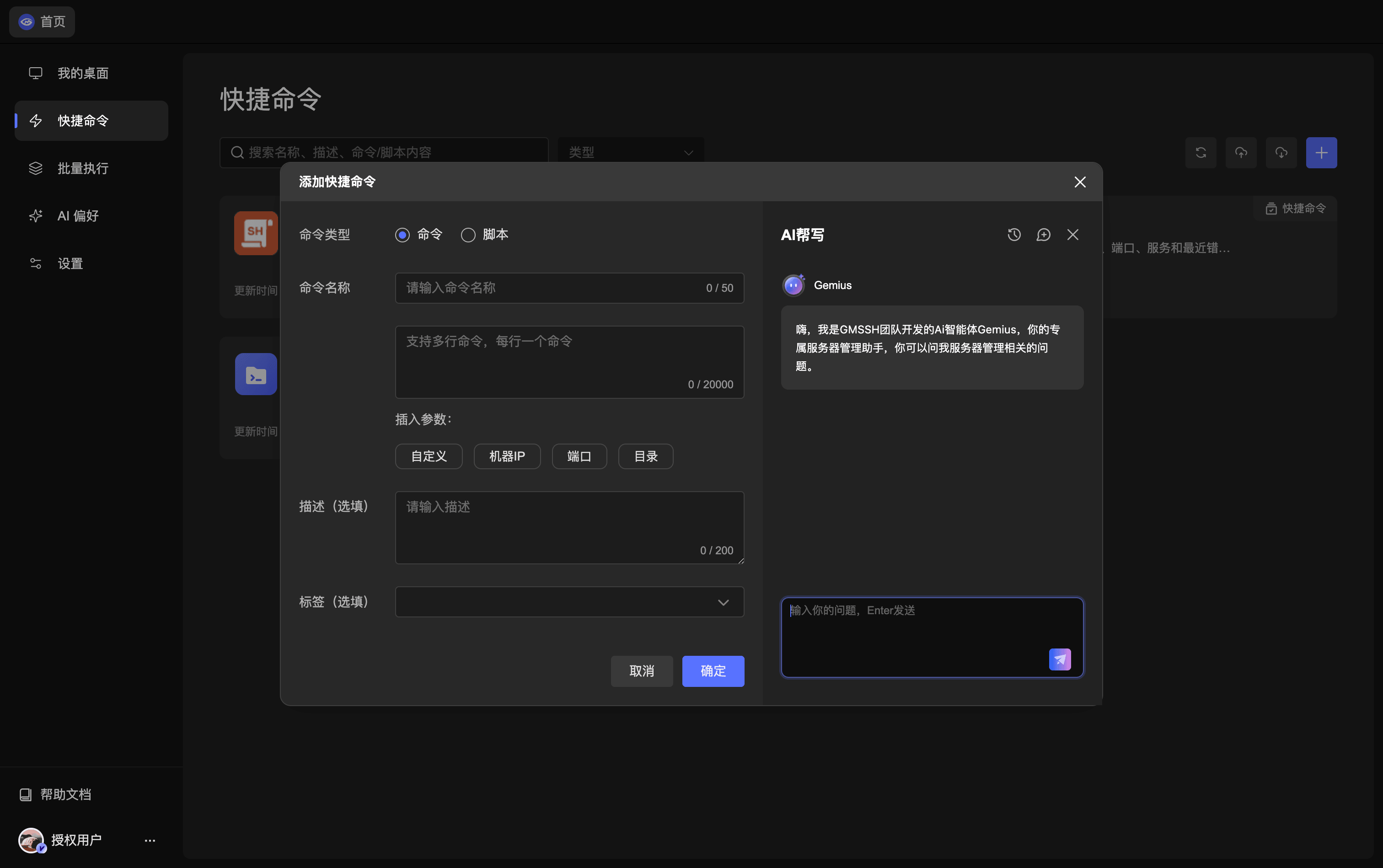
| Field | What to enter |
|---|---|
| Command Type | Choose Command or Script |
| Command Name | Enter a recognizable name, up to 50 characters |
| Command/Script Content | Enter the content to run; Command mode supports multiple lines with one command per line |
| Insert Parameters | Insert custom values, machine IP, port, or directory, then provide actual values before execution |
| Description (Optional) | Record the purpose, environment, or cautions, up to 200 characters |
| Tag (Optional) | An optional custom marker for your own items, not an official category |
Add Commands
Select Command and enter one or more shell commands directly. For example:
uname -a
df -h
free -h
Each line is run as a command. This mode is suitable for system checks, service management, and simple batch operations.
Add Scripts
Select Script to choose a script file in one of these supported formats:
| Format | Runtime | Typical use |
|---|---|---|
.php | PHP | Web project maintenance and data processing |
.py | Python | Automation scripts and operations tools |
.shell | Shell | Linux commands and service management |
.js | Node.js | JavaScript automation tasks |
Check the runtime first
GM Desktop dispatches and runs the script, but it does not install interpreters automatically. Make sure every target machine has the required PHP, Python, Shell, or Node.js runtime.
GMAI Assistance
The GMAI panel appears on the right when adding an item. Describe what you need in plain language and use GMAI to:
- Generate a command or script.
- Explain what a command does and identify risks.
- Review and improve existing content.
- Answer server management questions.
TIP
Review generated content before running it. Pay particular attention to file deletion, firewall changes, service restarts, and other operations that can affect a production machine.
Command Details
Open a card to view the full command or script content.
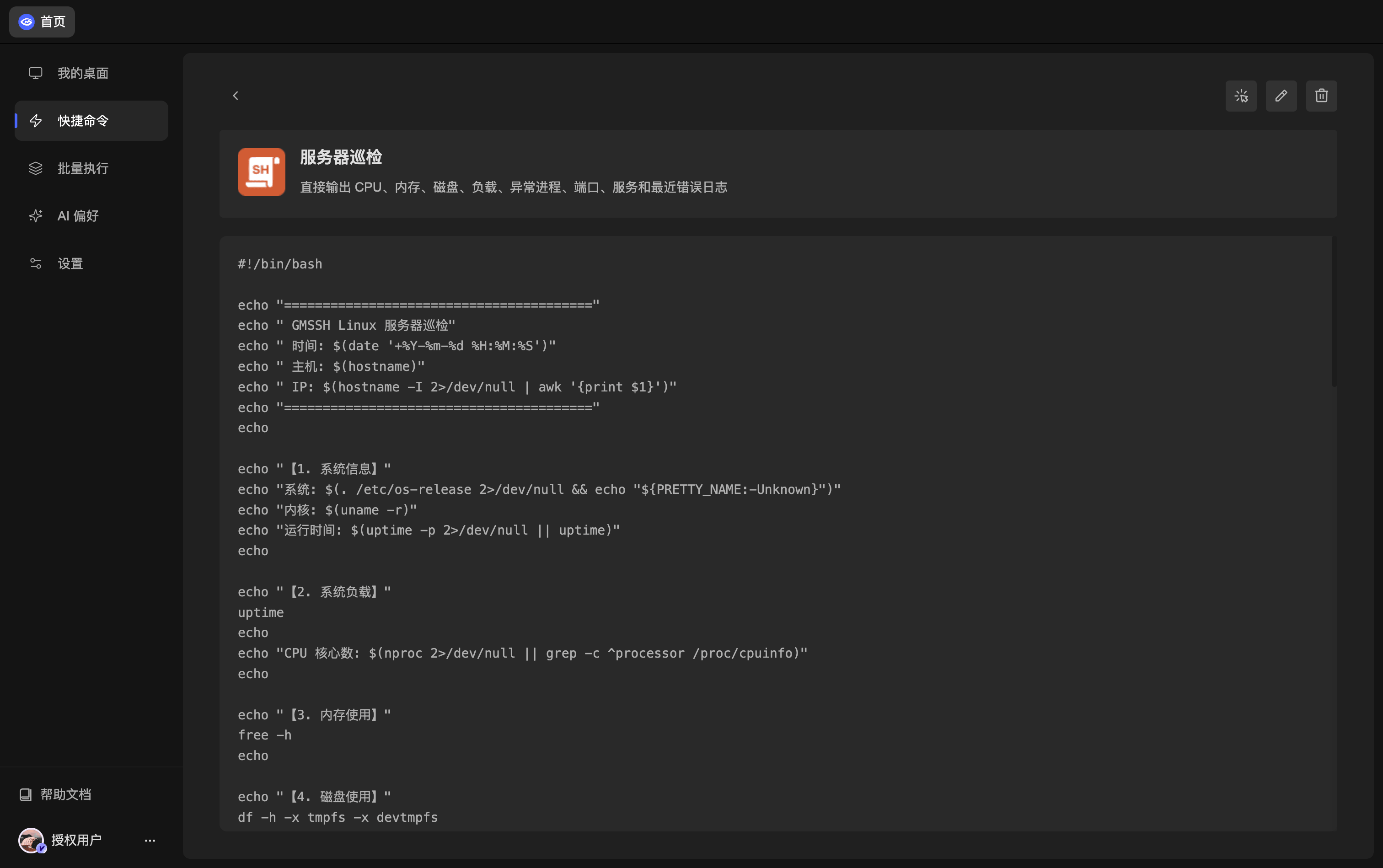
- Content: Review the code block before execution.
- Parameter Replacement: Provide actual values for dynamic parameters before running.
- Batch Execution: Select target machines directly from the details page.
Batch Execution
Click Execute on the details page to open the batch execution window.
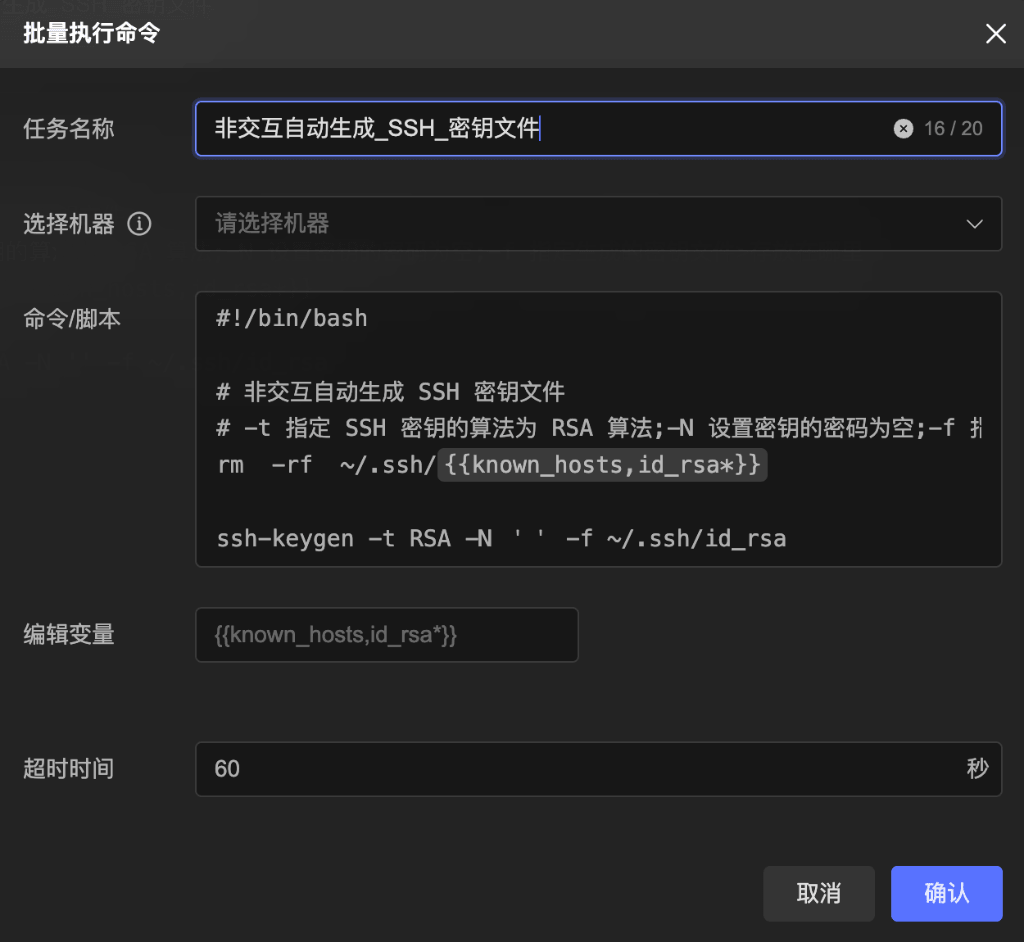
| Field | Description |
|---|---|
| Task Name | A name for this execution |
| Select Machines | Choose one or more target machines |
| Command/Script | Confirm the content that will run |
| Edit Parameters | Enter actual values for dynamic parameters |
| Timeout | Set the maximum execution time allowed per machine |
Confirm the content and targets before starting. View progress, logs, and per-machine results in Batch Execution.