
Docker Manager
GM Desktop Docker Manager is a containerization management tool designed for Linux servers. Built on the official Docker API, it provides an intuitive graphical interface covering seven core modules: Image Center, Containers, Images, Compose, Network, Storage, and Settings — making container management simpler than ever. Whether you're a Docker beginner or an experienced user, GM Desktop helps you master containerized deployment with ease.
Core Features
The Docker Manager covers the complete containerization workflow with seven core modules:
| Module | Purpose | Core Capabilities |
|---|---|---|
| Image Center | Docker App Store | Curated Docker images, one-click install |
| Containers | Lifecycle Management | Create, start/stop, restart, reset, delete; real-time CPU/memory/network/disk monitoring |
| Images | Local Image Management | Search, pull, delete images; view layers and build history |
| Compose | Orchestration | Multi-container app orchestration, YAML editing, one-click start/stop |
| Network | Network Management | Create/delete custom networks, view gateway and subnet configurations |
| Storage | Volume Management | Create/delete volumes, persistent storage and resource cleanup |
| Settings | Global Configuration | Docker service control, registry mirrors, resource monitoring |
Initialization
Zero-Barrier One-Click Setup. When opening Docker Manager for the first time, if Docker is not installed, the system automatically displays the "Docker Info" panel to guide you through initialization.
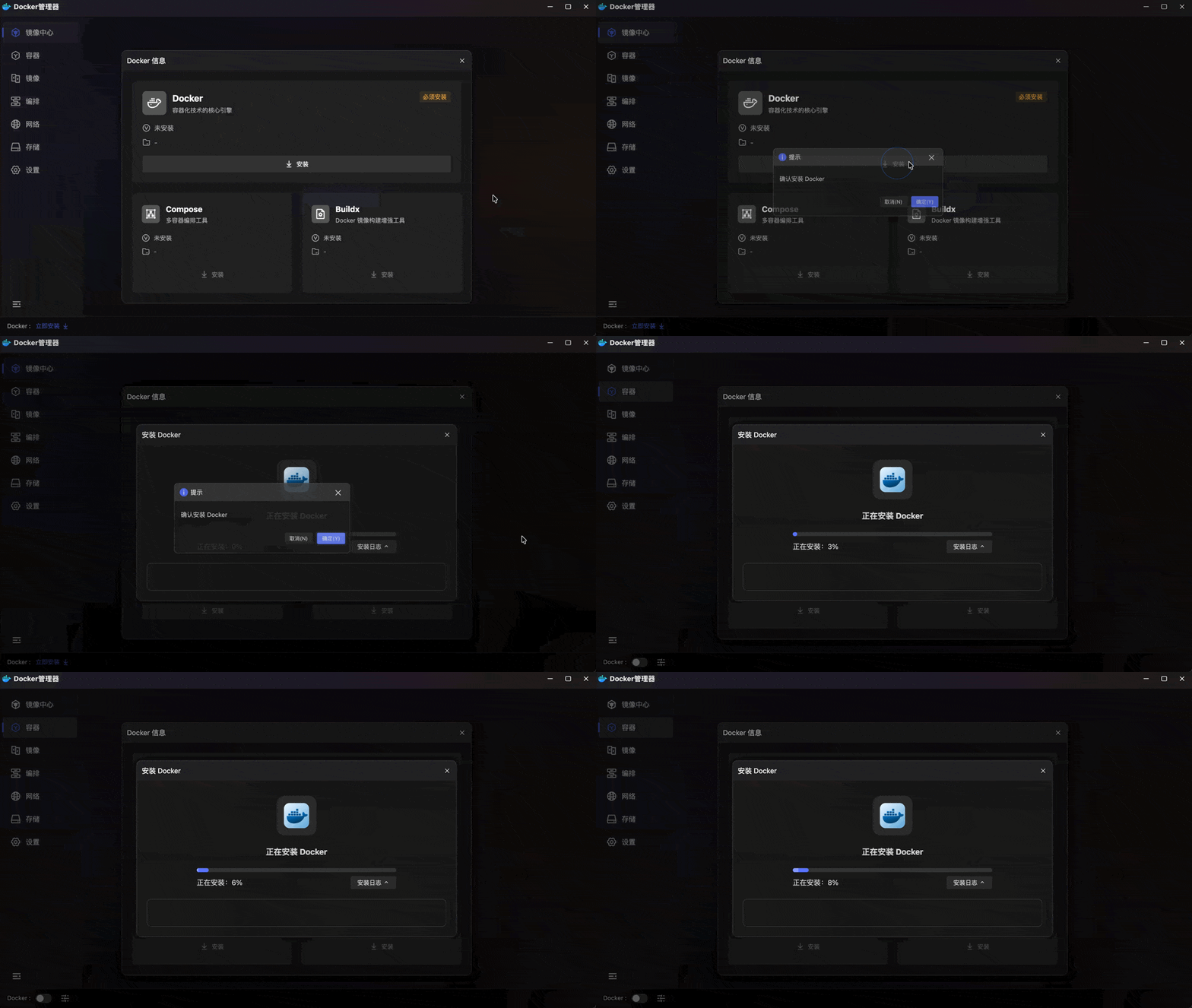
- Docker Engine Installation: The panel shows the Docker core engine installation status and progress. Click to automatically pull and configure Docker — no command-line operations needed.
- Compose Installation: One-click Docker Compose installation (multi-container orchestration tool) for subsequent multi-container deployments.
- Buildx Installation: One-click Docker Buildx installation (enhanced image build tool) for improved build capabilities.
- Progress Feedback: Real-time status display during installation with "Stop" and "View Logs" buttons for monitoring and troubleshooting.
- Service Status Indicator: The bottom Docker status toggle reflects the service state in real-time, automatically switching to enabled after installation.
Image Center
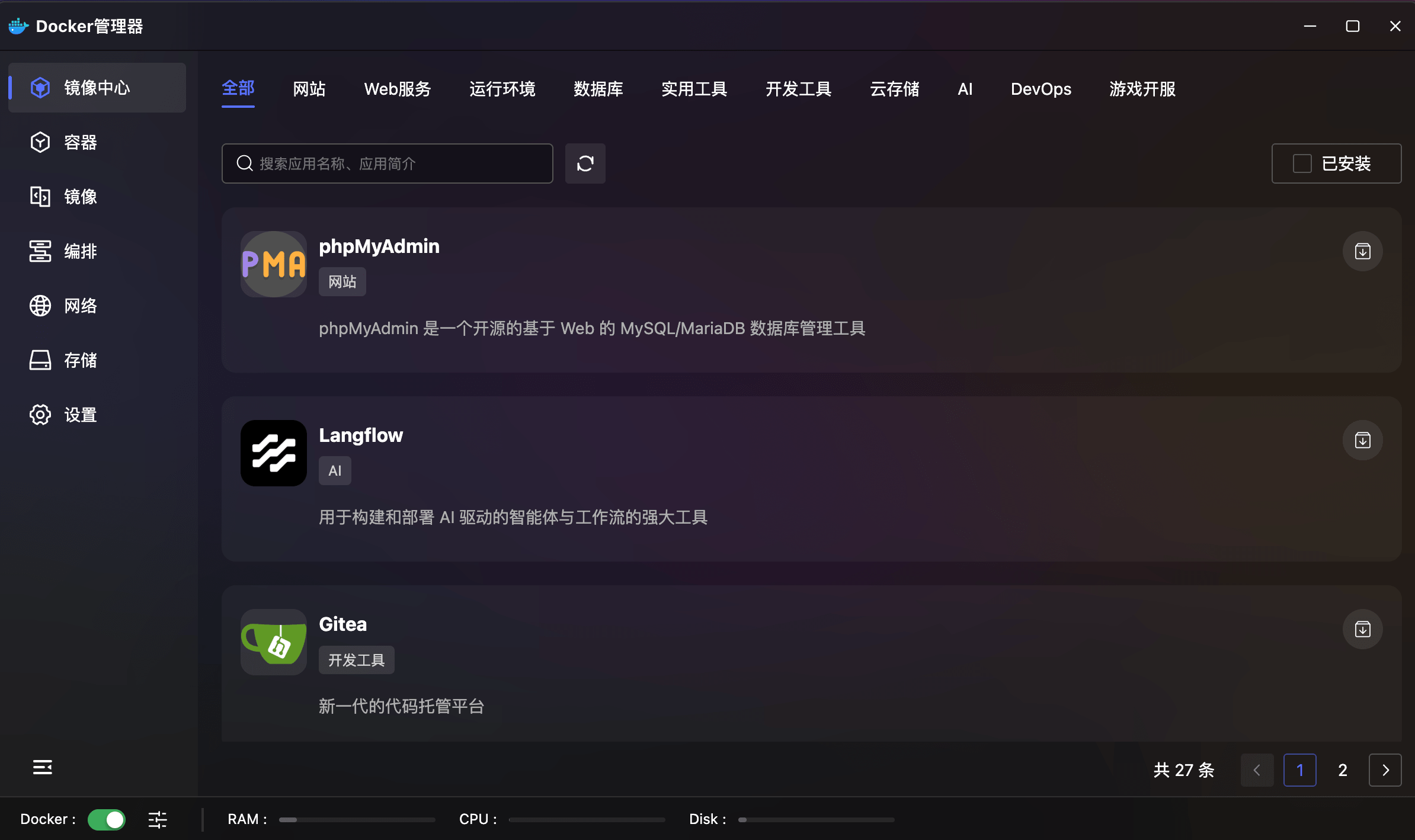
One-Click Docker App Store. The Image Center offers a large collection of pre-configured Docker app templates, allowing you to deploy common services without writing docker run commands or Compose files.
- Category Browsing: Top category tags — All, Website, Web Services, Runtime, Database, Utilities, Dev Tools, Cloud Storage, AI, DevOps, Game Servers — for quick filtering.
- One-Click Deploy: Each app card features a deploy button that opens a configuration wizard for port mapping, environment variables, etc.
- Installed App Management: Deployed apps show "Installed" status with version number. The context menu provides:
- Stop: One-click stop running container instances.
- Parameter Preview: View configured port mappings, environment variables, etc.
- Compose Details: View the app's Compose orchestration configuration.
- Visit Now: Quickly open the app's web management interface.
- Switch Version: Seamlessly upgrade or rollback between versions.
- Create Shortcut: Pin frequently used apps to the desktop.
- Remove: Uninstall the app and clean up related containers and data.
Containers
Full Lifecycle Container Management Center. The Containers module manages all Docker containers on the server with visual control from creation to destruction.
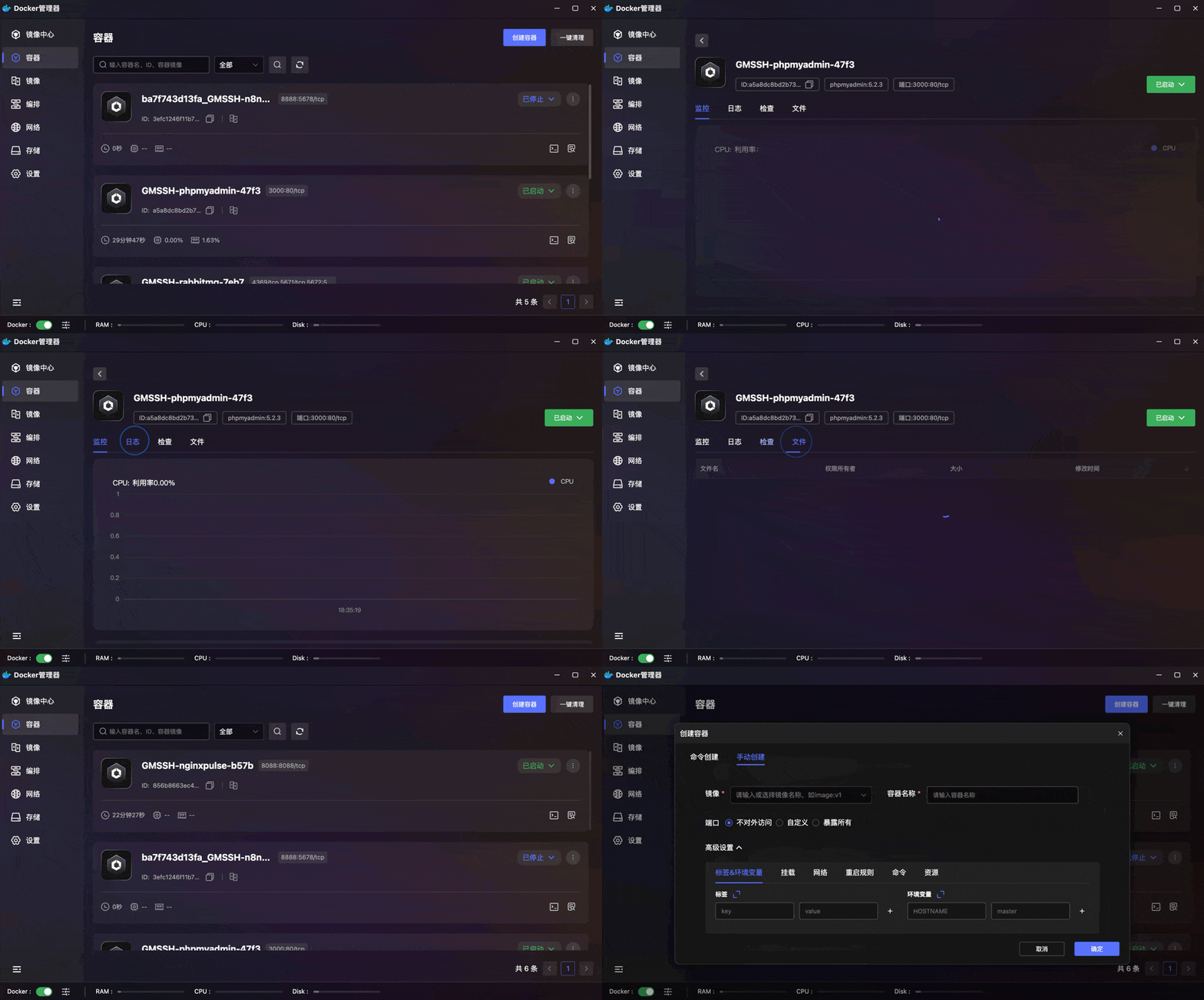
- Container List Overview: Card-style display of all containers showing name, status (running/stopped), image, IP address, port mapping, and real-time CPU/memory usage.
- Container Details: Click a container name to view comprehensive runtime status and configuration.
- One-Click Start/Stop/Restart: Control container state in seconds — no need to remember
docker start/stop/restartcommands. - Force Stop: For unresponsive containers, use "Force Stop" to quickly release resources.
- Container Reset: One-click reset to initial state, simplifying testing and rollback.
- Create Container: The top toolbar provides a "Create Container" button with a graphical wizard for configuring images, ports, volumes, environment variables, and more.
- Delete & Cleanup: Delete containers with an option to "Keep Volumes" to protect critical data.
Images
Local Image Resource Management. The Images module manages all pulled Docker images with search, pull, delete, and detailed inspection capabilities.
- Image List Overview: Displays all local images with name, tag, size, and creation time, with name-based quick search.
- Image Pull: Enter an image name to pull from Docker Hub or private registries with one click.
- Image Delete: Delete unused images to free disk space, with safe-deletion prompts if the image is in use.
- Image Details: Click an image to view layer information, build history, and configuration details.
Compose
Multi-Container Orchestration Management. The Compose module manages all Docker Compose projects with a table-based interface.
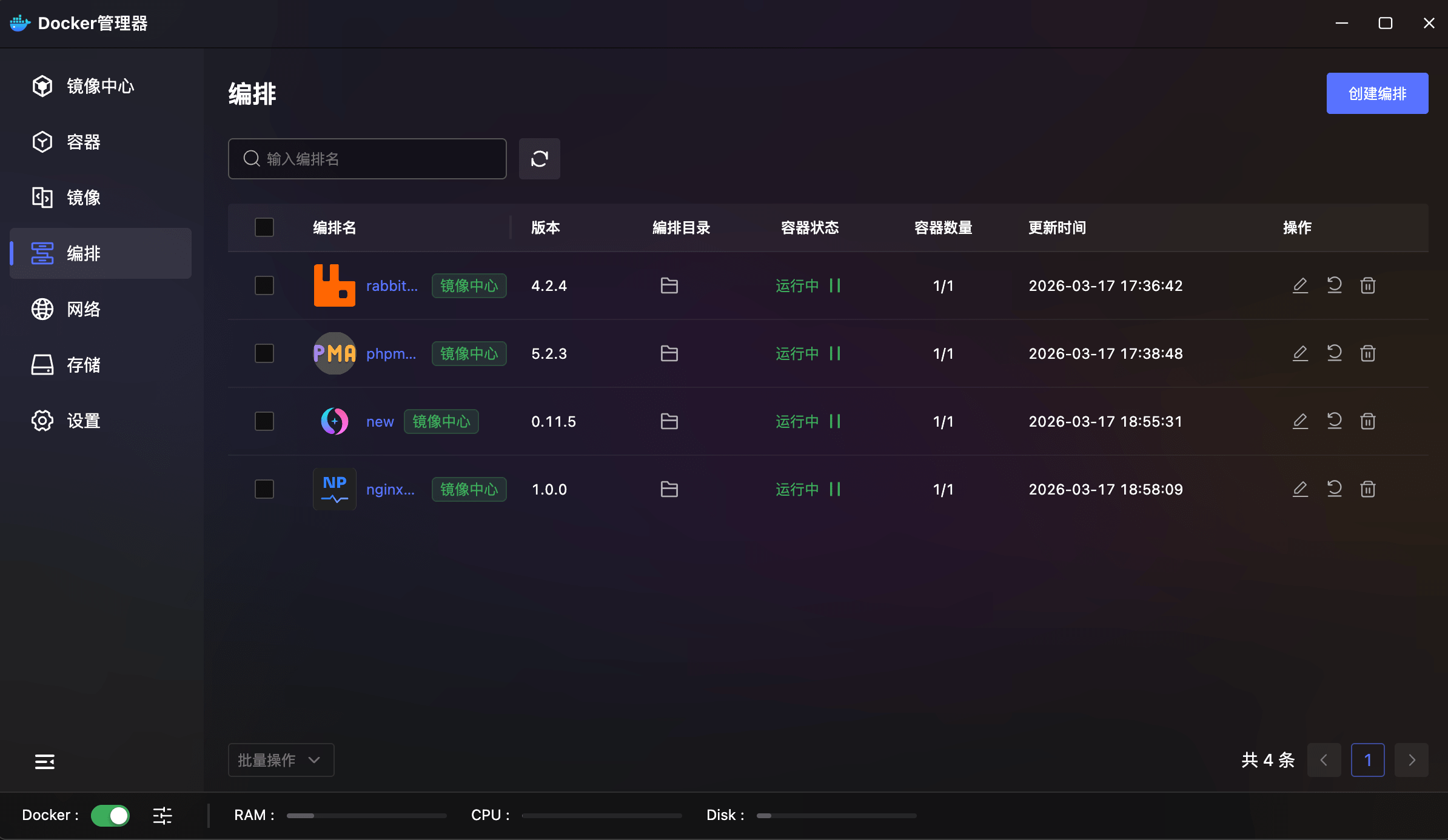
- Compose List: Clear table showing project name, version, directory, container status, count (e.g., 1/1), and last updated time.
- Source Badge: Projects deployed via Image Center are marked with an "Image Center" badge.
- Create Compose: Top-right "Create Compose" button for graphical project configuration.
- Quick Actions: Each row provides edit, terminal, and delete buttons.
- Batch Operations: Bottom batch operation entry for simultaneous start/stop or deletion of multiple projects.
- Search & Refresh: Integrated search box and refresh button.
Network
Docker Network Visual Management. The Network module displays all Docker virtual networks in a table format.
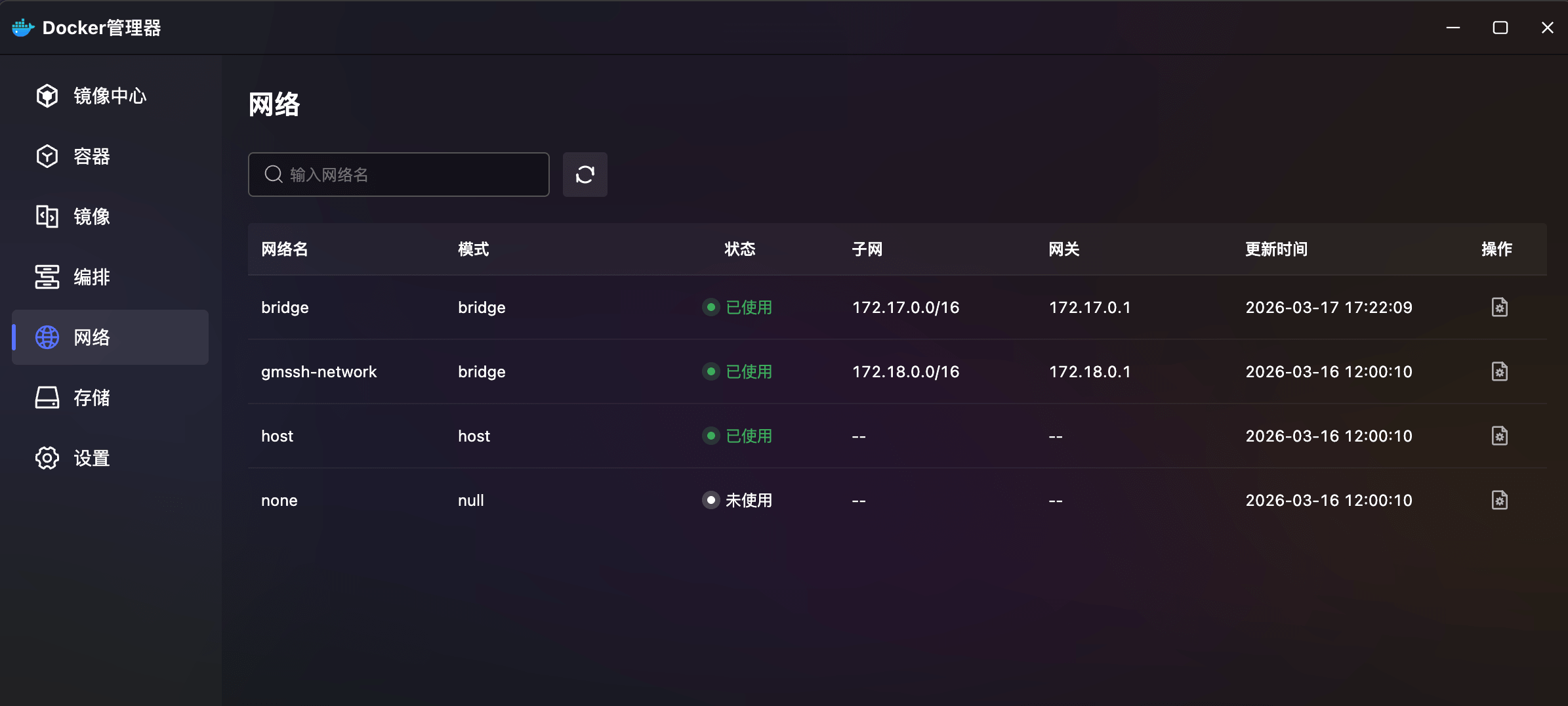
- Network List: Table showing network name, mode (bridge/host/null), status (in use/unused), subnet (e.g., 172.17.0.0/16), gateway (e.g., 172.17.0.1), and updated time.
- Built-in Networks: Displays Docker's three built-in networks — bridge, host, none — plus custom networks (e.g., gmssh-network).
- Status Indicators: Green "In Use" and gray "Unused" badges for clear activity status.
- Detail View: Each row provides a details button for complete network configuration.
- Search & Refresh: Integrated search box and refresh button.
Storage
Docker Volume Management. The Storage module manages Docker data volumes with creation, viewing, and cleanup capabilities.
- Volume List: Table showing volume name, mount point, status, mode, size, and creation time.
- Search & Refresh: Integrated search box and refresh button.
- Operations: Each row provides buttons for viewing details or deleting volumes.
Settings
Docker Global Configuration Center. The Settings module provides deep Docker daemon configuration, supporting both direct config file editing and graphical parameter adjustment.
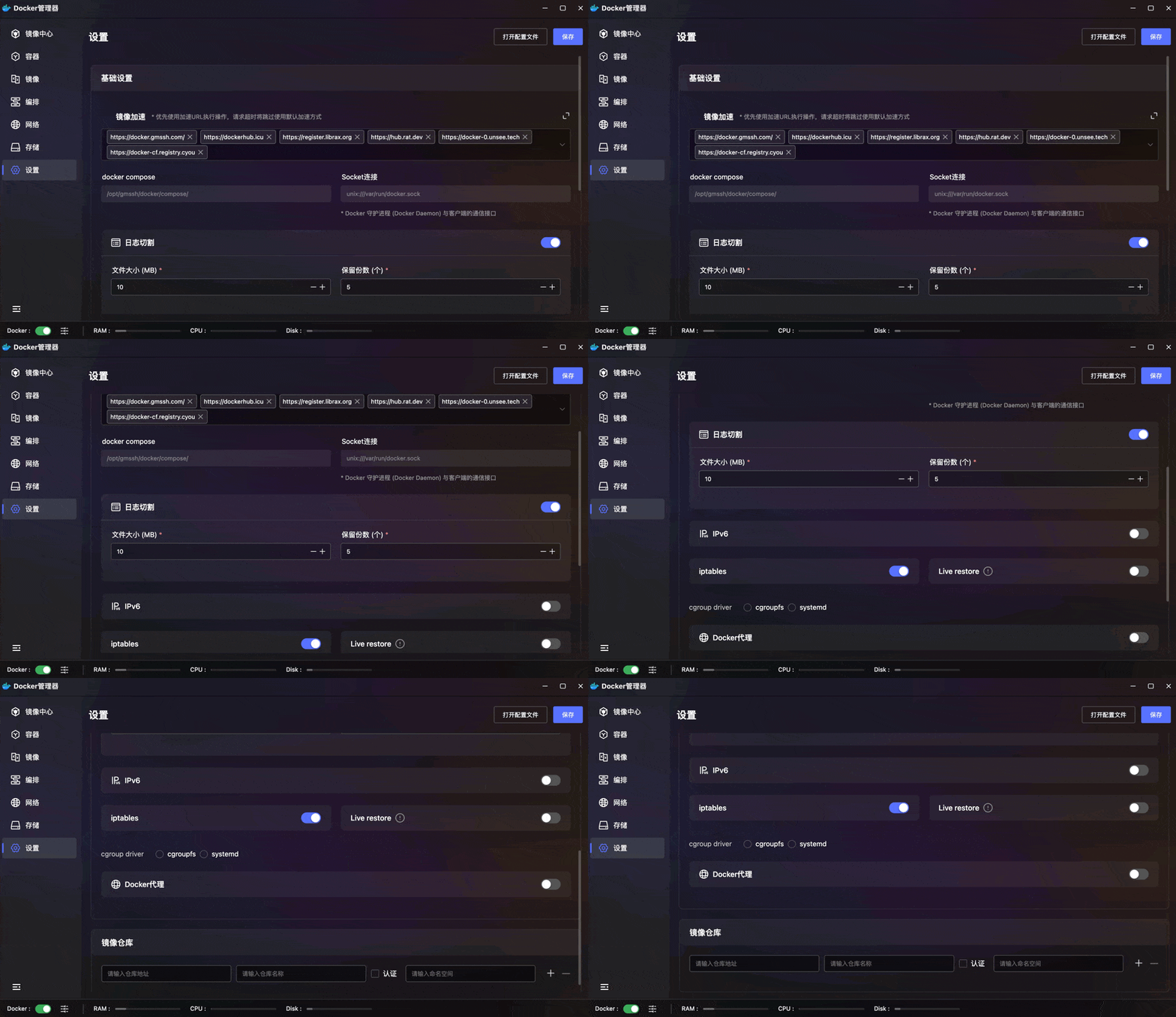
- Basic Settings:
- Registry Mirrors: Visual management of multiple Docker mirror URLs. Priority is given to mirror URLs for pulling; timeouts automatically fall back to default. Supports one-click add/remove.
- Compose Path: Configure the Compose file storage directory (default
/opt/gmssh/docker/compose/). - Socket Connection: Configure the Docker daemon-client communication interface (default
unix:///var/run/docker.sock). - Log Rotation: Toggle control with configurable max log file size (MB) and retention count to prevent disk overflow.
- IPv6: One-click enable/disable Docker IPv6 network support.
- iptables: Control whether Docker automatically manages iptables firewall rules.
- Live Restore: When enabled, containers continue running during Docker daemon restarts, reducing service interruptions.
- Cgroup Driver: Switch between cgroupfs and systemd drivers (must match the system init process).
- Docker Proxy: Enable Docker network proxy to resolve image pulling difficulties in restricted networks.
- Image Registry: Configure private image registries with address, name, credentials, and namespace for enterprise-grade image management.
- Config File: Top-right "Open Config File" button for direct daemon.json editing. Changes take effect after saving.