
Windows client interfaces fail to load or features are unavailable
In some Windows environments, Windows Defender Firewall or other security policies may affect communication with GM Desktop local services. This can cause client interfaces to stay in a loading state, visual features to fail, or some client functions to remain unavailable even though the SSH connection works normally.
GM Desktop starts local services on the computer and communicates with the cloud server through SSH. If you encounter these symptoms, try creating inbound allow rules for the relevant GM Desktop programs. Do not turn off the entire firewall or open a fixed port.
Common symptoms
- A client interface stays in a loading state;
- Some GM Desktop visual management features do not work;
- SSH connects normally, but some client features fail;
- The “Server Browser” cannot be used.
Steps
1. Open Windows Defender Firewall Advanced Settings
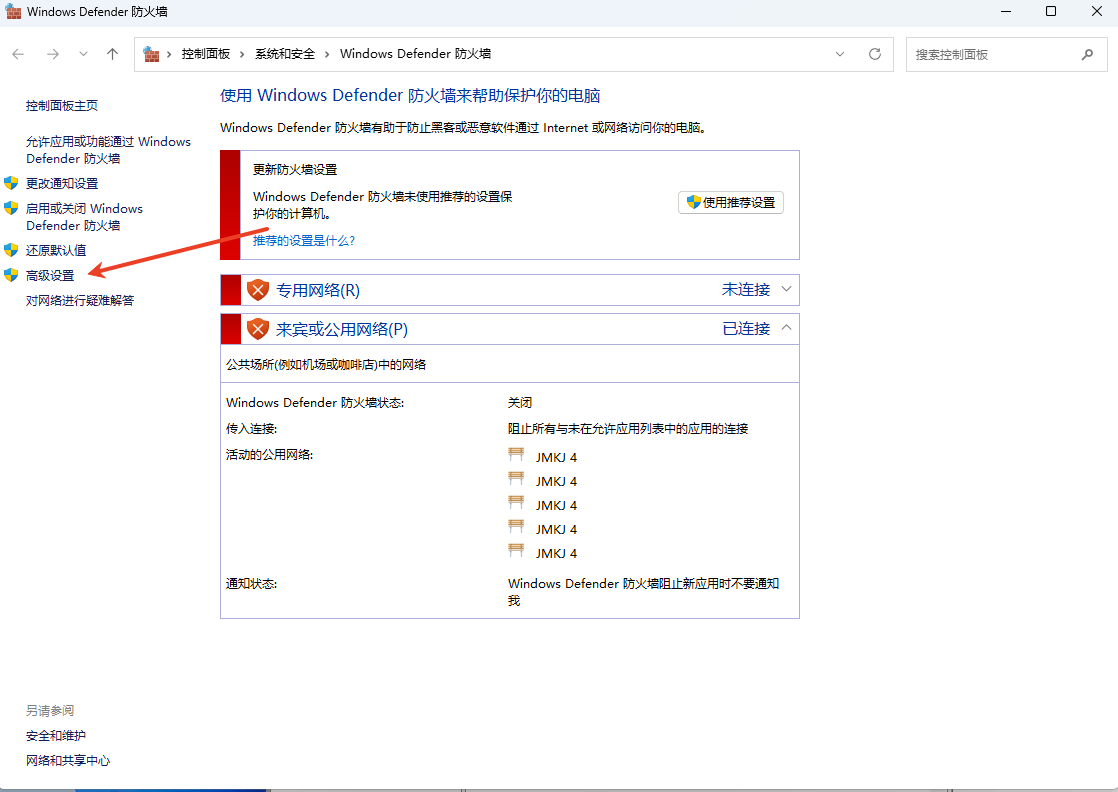
Open “Windows Defender Firewall” and click “Advanced settings” on the left.
2. Select Inbound Rules and create a rule
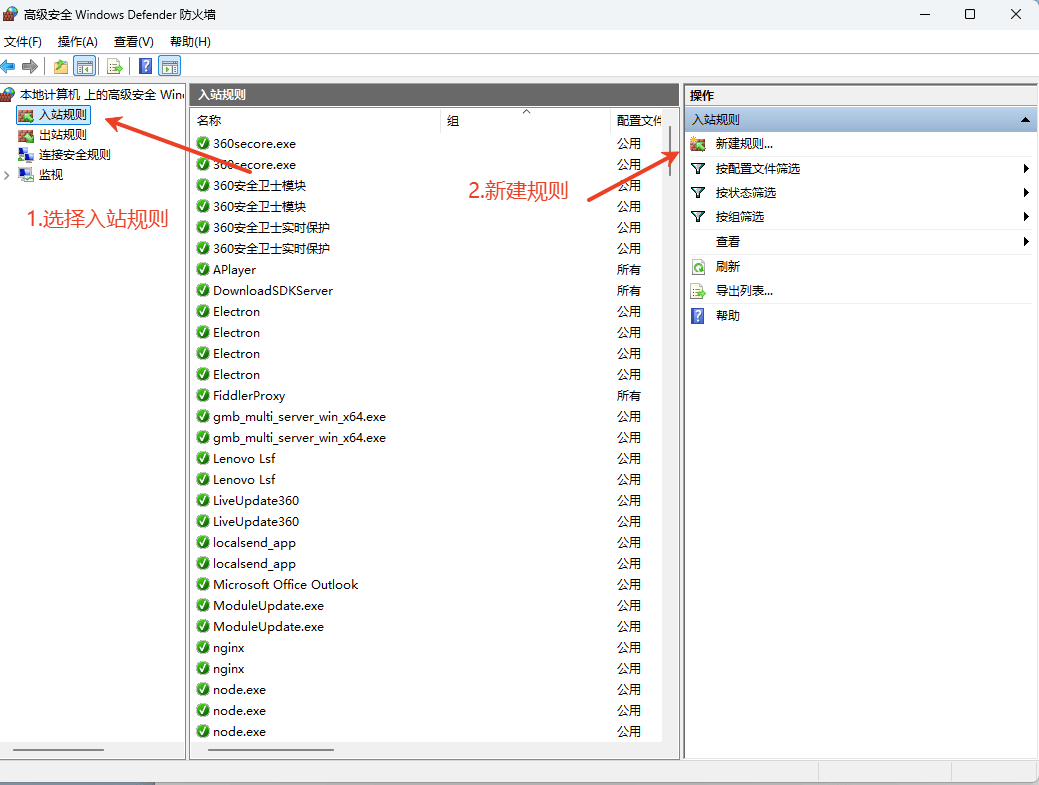
In “Windows Defender Firewall with Advanced Security”, select “Inbound Rules” on the left, then click “New Rule” on the right.
3. Select the Program rule type
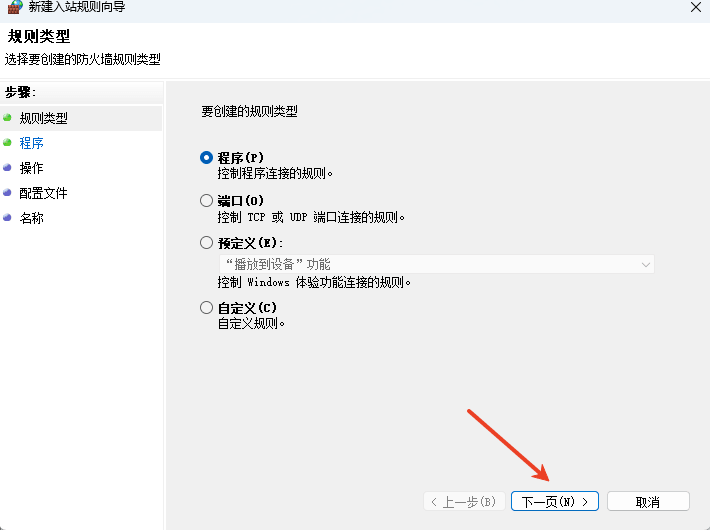
Select “Program” and click “Next”.
4. Select the GM Desktop main service
Select “This program path” and click “Browse”. The program is usually located at the following path under your Windows user directory:
C:\Users\<your-username>\AppData\Roaming\GMSSH\serve\multi\gmb_multi_server_win_x64.exePath note
AppData is hidden by default. If you cannot find it, open File Explorer and enable “View” → “Show” → “Hidden items” (the menu name may vary between Windows versions).
Select gmb_multi_server_win_x64.exe in the file picker.
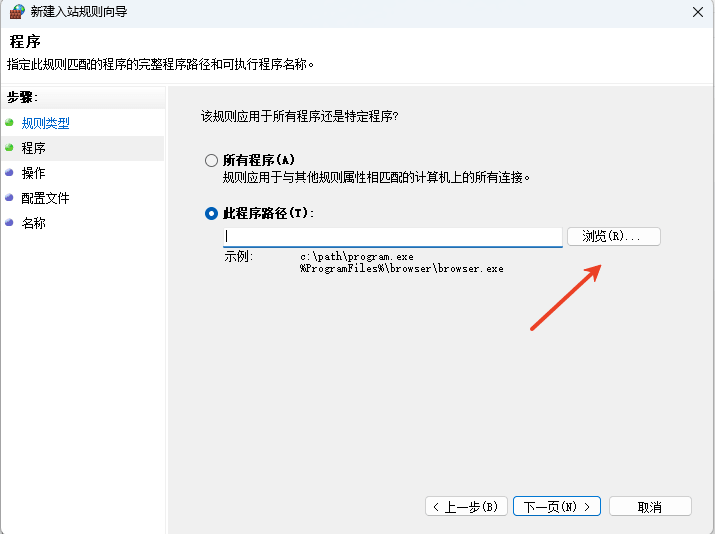
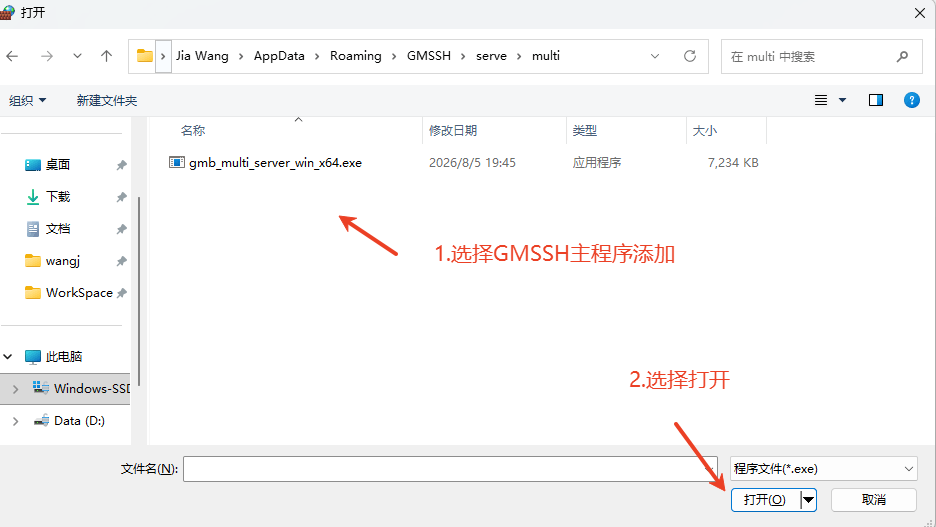
Confirm the program path and click “Next”.
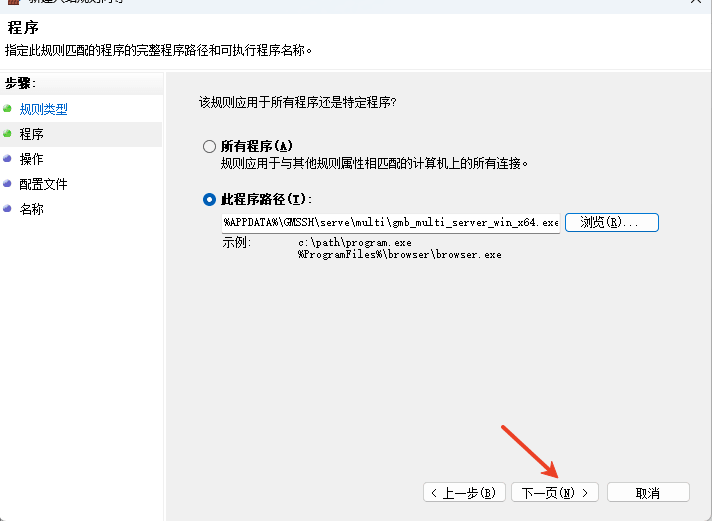
5. Allow the connection
Select “Allow the connection” and click “Next”.
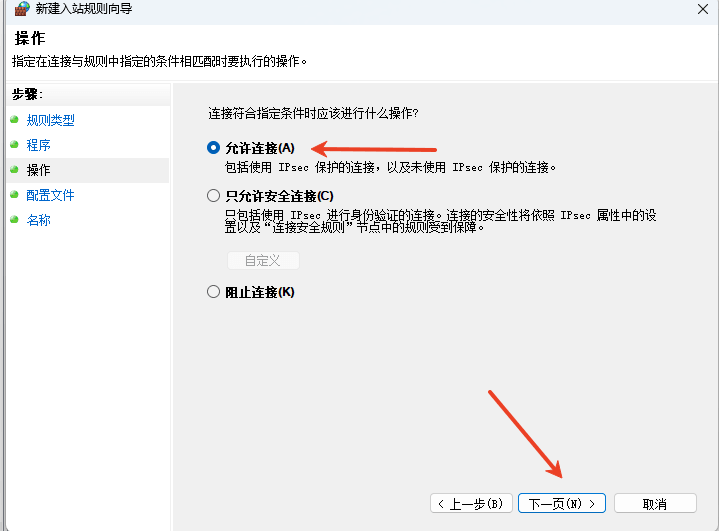
6. Select network profiles
Select the profiles that match your network. The example selects Domain, Private, and Public; if you are unsure, keep the system-recommended options and click “Next”.
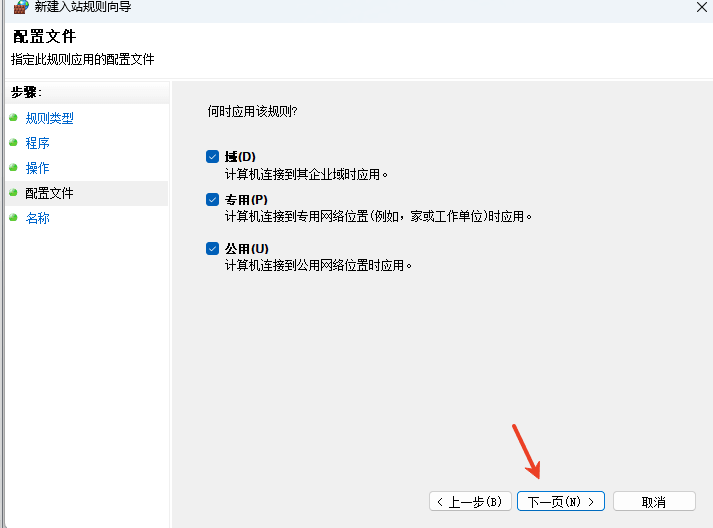
7. Name and finish the rule
Enter a recognizable name, such as GMSSH1, and click “Finish”.
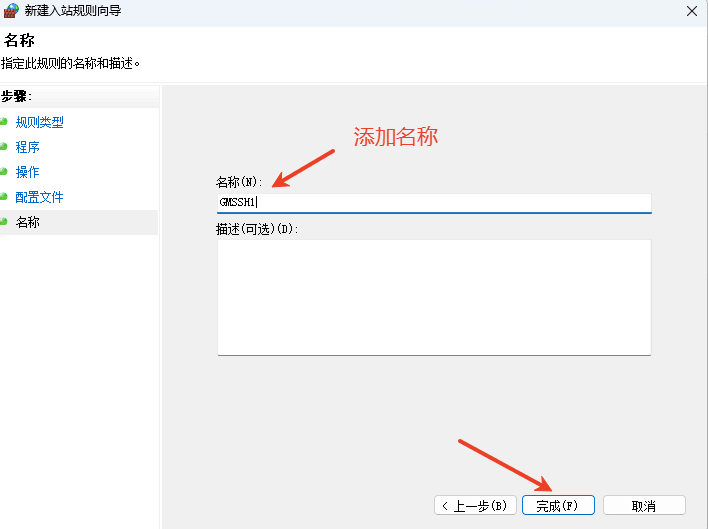
If Server Browser is still unavailable
Server Browser uses a GM Desktop local proxy service to access the network from the server side. If the main GM Desktop interface works again but Server Browser still does not, create another inbound allow rule for its program.
The program is usually located at:
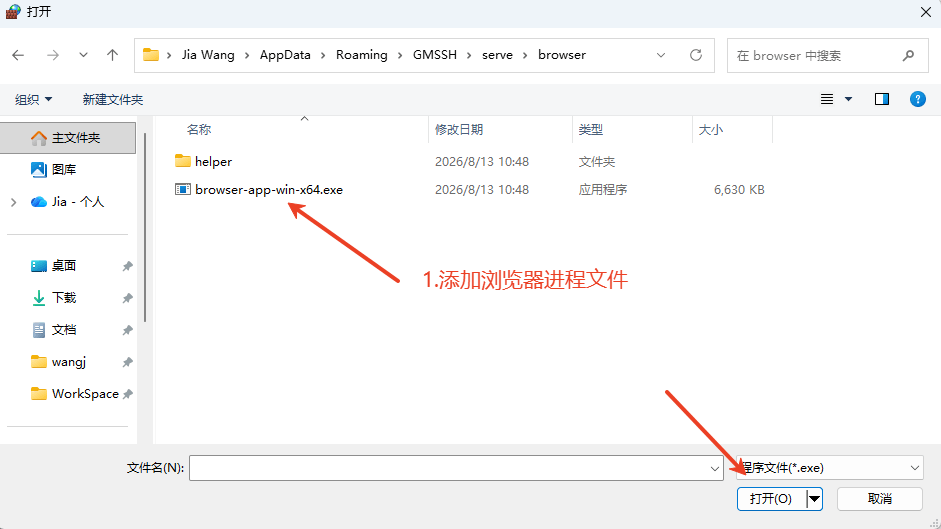
C:\Users\<your-username>\AppData\Roaming\GMSSH\serve\browser\browser-app-win-x64.exePath note
AppData is hidden by default. If you cannot see it, enable hidden items as described above.
Select browser-app-win-x64.exe, then follow the same steps to allow the connection and select the network profiles.
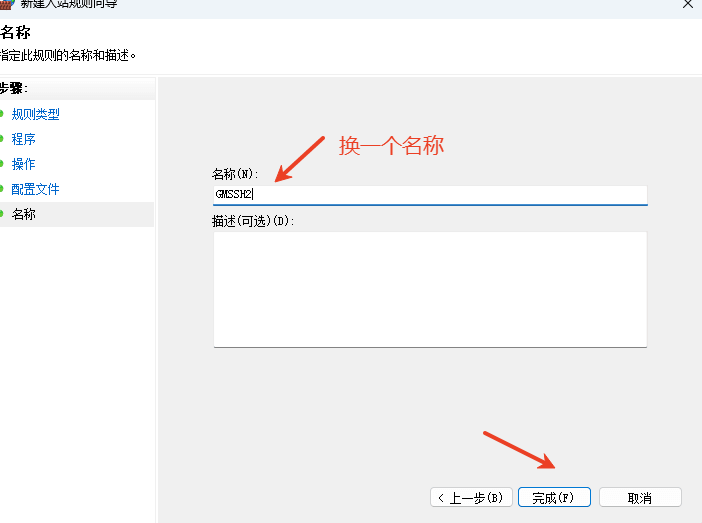
Give the rule a recognizable name, such as GMSSH2, and click “Finish”.
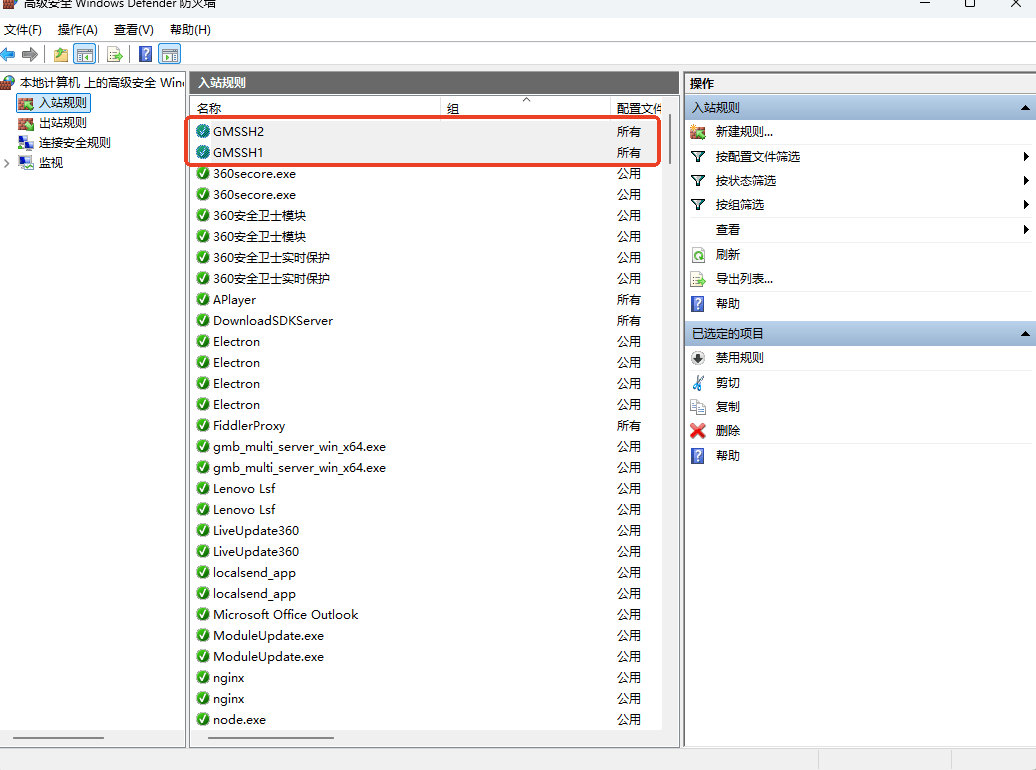
You can then find the new rules in the Inbound Rules list.
After completing the steps
Restart GM Desktop after creating the rules
Fully exit the GM Desktop client, including any GM Desktop process in the system tray. Reopen it, then test the interfaces, visual features, and Server Browser again.
This solution addresses program communication permissions. You do not need to open a fixed TCP port. GM Desktop local service ports can be configured by the user and are not fixed, so create rules for the relevant .exe programs instead.
Still not working?
If the issue remains, check the following:
Refresh the firewall configuration first
Sometimes a newly created rule does not take effect immediately. You can temporarily turn Windows Defender Firewall off and on again to refresh the configuration. Do not leave the firewall disabled.
- Make sure GM Desktop is up to date;
- Check whether third-party antivirus or security software is installed;
- Check whether a company-managed Windows Firewall or security policy is in place;
- Contact GM Desktop technical support with the GM Desktop client version, Windows version, and screenshots of the issue.